Flow editor
Windmill's Flow editor allows you to build flows with a low-code builder.
Workflows are graphs (DAG) that represent job specifications. A workflow engine is a distributed system that takes a workflow and orchestrates it to completion on workers while respecting among others all the dependency constraints of each job. There exists a great variety of workflows and many software are domain-specific workflow engines and workflow specs (if you are a software engineer, you probably already wrote one without realizing it).
The goal of an orchestrator or workflow engine is to execute the steps on different workers that respect that graph's dependencies, and pass the required data defined in the steps' inputs while applying parallelism when possible.
In Windmill, each step is code with a main function in TypeScript, Python, Go, PHP, Bash or raw queries to databases. The result of a flow is the result of the last step executed, unless error was returned before or Early return is set.
Another approach is to write a program that defines the jobs and their dependencies, and then execute that program. This is known as workflows as code.
Flow groups
Flow groups visually cluster related steps in the flow editor. A group renders as a colored border around its contained nodes with a header card, and behaves as a single unit for comments, navigation, and run-page display.
Creating and editing groups:
- Select multiple nodes (drag-box selection or shift-click), then create a group from the bounding-box action menu.
- Each group has an overlay action bar with: collapse/expand, a color picker, a "collapsed by default" toggle, and an ungroup action.
- Double-click the group header to add a markdown description; groups support GitHub-flavored Markdown for rich documentation on the canvas.
Collapsible groups:
- Click the minimize button on the group to collapse it into a single node (similar to a subflow). Click again to expand.
- The runtime collapsed/expanded state is ephemeral (per-session).
- Toggling "Collapsed by default" is a persistent setting saved in the flow YAML — the group will render collapsed the next time the flow is loaded.
- Groups and notes are shown in the flow status viewer, both on the run page and in the editor preview, so the visual grouping you designed is preserved when reviewing runs.
See also Sticky notes for free-floating markdown notes on the canvas.
Subflows
A step can run another flow of the workspace instead of a script: pick Flow when inserting a step. Hover a subflow node and click "Expand subflow" to inline its steps in the graph, "Unexpand subflow" on the expansion's boundary to collapse it back.
Selecting an inlined step shows a read-only view of it, a breadcrumb of the subflow chain it belongs to, an "Edit" button that opens the owning subflow in a drawer with that step selected, and a button to open it in a new tab.
Node manipulation
Windmill's flow editor supports several ways to rearrange, duplicate, and remove nodes:
Drag-and-drop reordering
- Each flow node has a move handle; drag it to reorder the node anywhere in the flow.
- Dragging a subflow (for-loop, branchall, branchone) shows a live ghost of the full subflow graph — scaled to viewport zoom — so you can see exactly what you're moving.
- Valid drop zones are highlighted in green as you approach them, with proximity cues guiding the drop.
- All nested descendants of a dragged subflow fade visually so you can see which nodes will move together.
- Press
Escapeduring a drag to cancel cleanly.
Node context menu
Right-click any node in edit mode to open its context menu:
- Move — enters the legacy click-to-move mode (same as the hover-button move).
- Duplicate — clones the node and all of its nested children, reassigning IDs, and inserts the clone right after the original.
- Delete — removes the node (shown in red as a danger action).
- Add note — attaches a sticky note to the node.
Multi-select actions
- Enter selection mode from the top-right of the flow pane, then drag-box or shift-click to select multiple nodes.
- The bounding-box action menu supports multi-select move, duplicate, and delete in one action.
- Per-node action buttons (ellipsis, delete, test/run, output picker, expand subflow) are hidden during multi-selection so the canvas stays clean.
- While in selection mode, hold
Ctrl/Cmdto temporarily pan the canvas; while in pan mode, holdCtrl/Cmdto temporarily select nodes.
Features
The Flow editor has the following features which are the subject of specific pages:
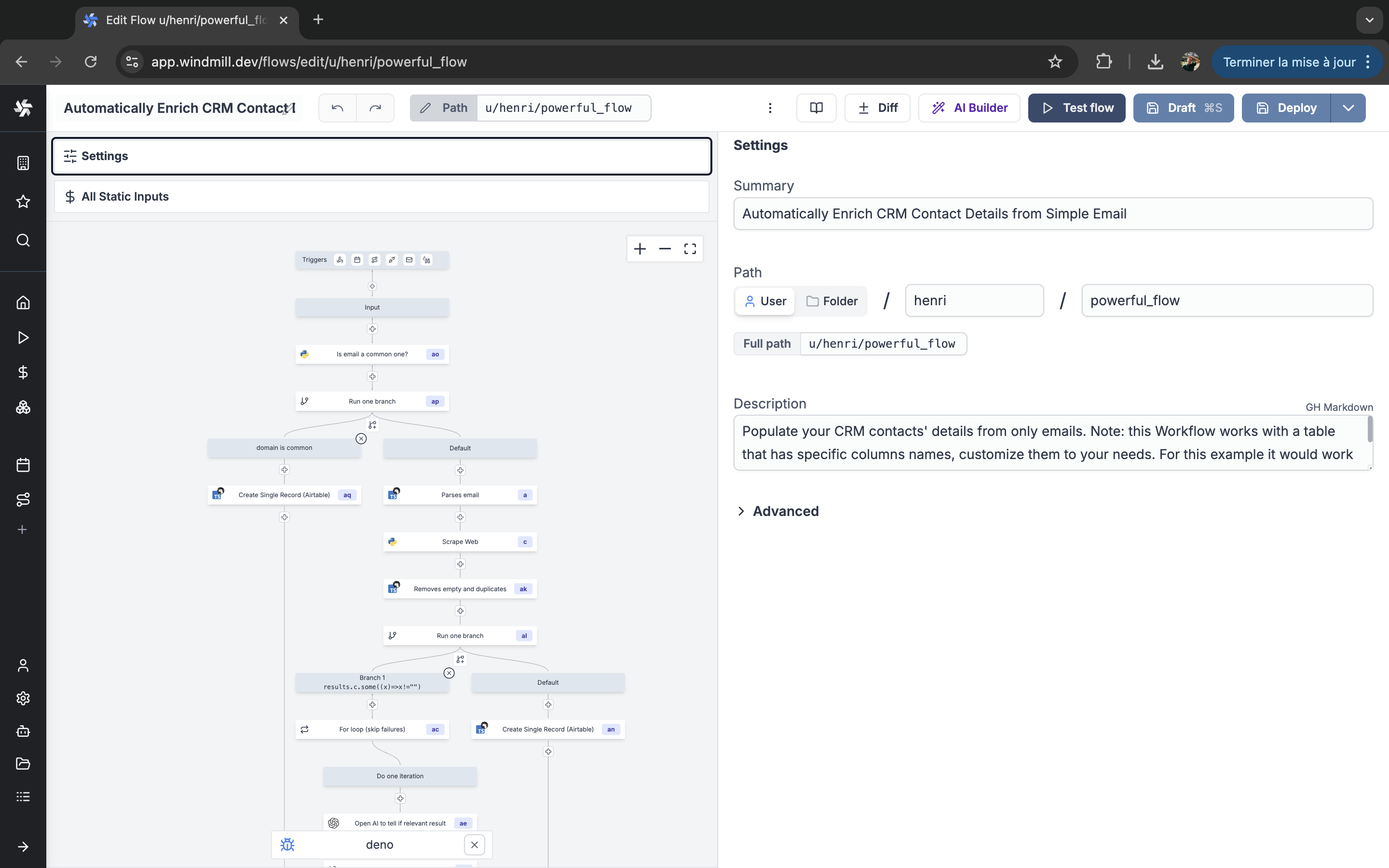
Example of a flow in Windmill.