Windmill MCP
Windmill supports the Model Context Protocol (MCP), an open standard that enables seamless interaction between LLMs and tools like Windmill.
With MCP, you can connect your favorite LLMs (like Claude, Cursor, or any MCP compatible client) to Windmill, allowing you to trigger your scripts and flows from your client chat.
Additionally, MCP provides access to Windmill's API endpoints for basic operations on:
- Jobs - Monitor and manage job executions, including tracking their progress, retrieving logs, and viewing execution results
- Resources - Create, read, update, and delete resources for third-party system connections like databases and APIs
- Variables - Manage workspace variables and secrets for secure credential storage and configuration management
- Schedules - Control scheduled executions with CRON-like automation for scripts and flows
- Workers - Monitor worker status and configuration, including worker groups and resource allocation
Windmill can also be the client rather than the server: an AI session chat calls the tools of the external MCP servers you connect to it from its assistant settings. The rest of this page covers the other direction, where an external client drives your Windmill workspace.
Connect with Claude
From the Claude Connectors Directory
The easiest way to connect Windmill to Claude is through the Claude Connectors Directory:
- Go to the Connectors Directory and search for Windmill
- Click Connect and log in to your Windmill account
- Select your workspace and choose which tools to expose
- Start using your scripts and flows directly from Claude
As a custom integration
You can also add Windmill manually as a custom integration:
- Go to Claude > Settings > Integrations
- Click "Add an integration"
- Name it "Windmill" and set the URL to:
https://app.windmill.dev/api/mcp/gateway
For self-hosted instances, replace the URL with your own instance base URL (e.g. https://windmill.example.com/api/mcp/gateway).
- When redirected to Windmill, select your workspace and configure the scope
- Click Approve to complete the connection
How to use
Connect with OAuth
The simplest way to connect is via OAuth. Just add the following URL to your MCP client:
<base_url>/api/mcp/gateway
(e.g. https://app.windmill.dev/api/mcp/gateway for Windmill Cloud, or your own instance URL for self-hosted)
This is the gateway URL — it works without knowing your workspace ID upfront. During the OAuth flow, you'll be prompted to select your workspace and configure which tools (scripts, flows, endpoints) to expose.
If you already know your workspace ID, you can also use the workspace-specific URL:
<base_url>/api/mcp/w/<your-workspace-id>/mcp
(e.g. https://app.windmill.dev/api/mcp/w/my-workspace/mcp)
Both approaches automatically handle authentication via OAuth.
For more fine-grained usage, you can manually create a token to choose which tools are exposed to the client (see below).
Generate your MCP token and URL
- Navigate to your account settings in Windmill.
- Create a new token under the Tokens section, and select Generate MCP URL.
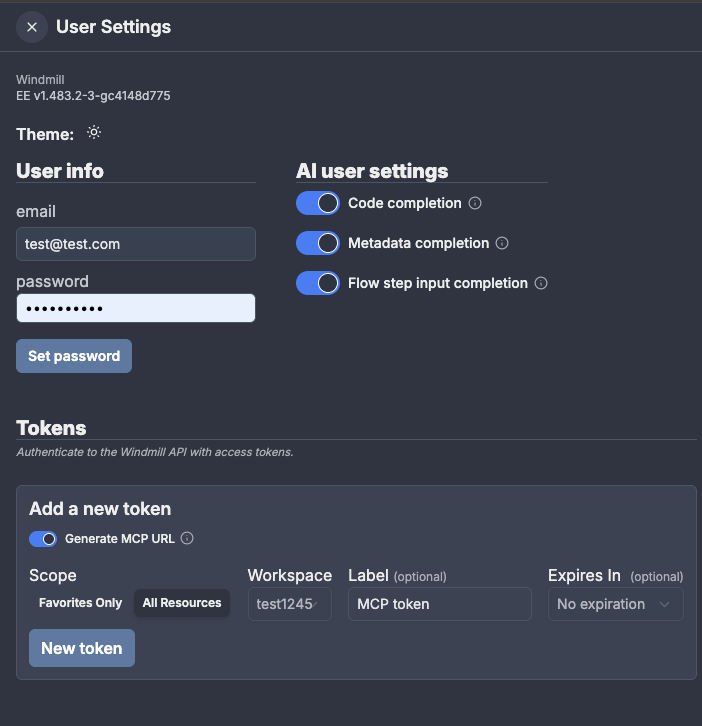
Once created, your MCP URL will look like this:
<base_url>/api/mcp/w/<your-workspace-id>/mcp?token=<your-token>
(e.g. https://app.windmill.dev/api/mcp/w/my-workspace/mcp?token=abc123)
This token is used to authenticate MCP clients and generate your personal MCP endpoint URL. Save this URL securely. Treat it like an API key—anyone with access can trigger actions in your workspace.
Multi-workspace tokens
When creating a token, select All workspaces in the workspace dropdown to generate a single token that works across every workspace you can access, instead of one token per workspace. This avoids registering a separate MCP server entry in your client for each workspace.
A multi-workspace token has no bound workspace and uses the gateway URL directly:
<base_url>/api/mcp/gateway?token=<your-token>
With a multi-workspace token, the MCP server exposes an extra list_workspaces tool that returns the workspaces the token can access. Workspace-scoped tools (like listScripts or runScriptByPath) then require an explicit workspace_id argument, which the LLM picks from the list_workspaces result. Per-workspace scripts and flows are not enumerated across all workspaces, so run them by path with runScriptByPath/runFlowByPath and the target workspace_id.
Access is always gated by workspace membership: the token only reaches workspaces you are a member of, and requests to any other workspace are denied.
Refuse tokens in MCP URLs
A token in a URL ends up in browser history and proxy logs.
Superadmins can make the MCP endpoints refuse a ?token= query parameter with the Disable token in MCP URLs instance setting.
Clients then use the bare MCP URL and sign in through OAuth, or send the token in an Authorization: Bearer <token> header.
Connect your LLM to Windmill
Most modern LLM agents and interfaces now support MCP as a plug-and-play integration. The Windmill MCP server uses HTTP streamable as the transport layer, and MCP clients should be configured to use that protocol. Here are some examples configurations, for Claude Desktop and Cursor.
To connect with Cursor:
- Go to Cursor > Settings > MCP Tools
- Click on "Add a Custom MCP server"
- Add the following configuration in the json file:
{
  "mcpServers": {
    "windmill-mcp": {
      "url": "<base_url>/api/mcp/w/<your-workspace-id>/mcp?token=<your-token>"
    }
  }
}
To connect with Claude:
- Go to Claude > Settings > Integrations (here)
- Click on "Add an integration"
- Choose a name for your integration (e.g. "Windmill")
- Add your MCP URL in the "URL" field
To connect with Claude Code:
- Use the Claude Code CLI to add the Windmill MCP server:
claude mcp add --transport http windmill <windmill_url_with_token>
Replace <windmill_url_with_token> with your actual MCP URL from the previous step.
Once connected, your LLM will be able to run any script or flow in your Windmill workspace.
Protocol versions
The server answers five revisions of the MCP specification on the same endpoint: 2024-11-05, 2025-03-26, 2025-06-18, 2025-11-25 and 2026-07-28. Clients built against an older revision keep negotiating through the initialize handshake. Clients on 2026-07-28, which removes that handshake, send their version in the MCP-Protocol-Version header instead and are served statelessly.
Both eras expose the same tools, and the client picks the revision it speaks, so there is nothing to configure on the Windmill side. A client asking for a revision outside that list gets a 400 with JSON-RPC error -32022, whose payload lists the revisions the server accepts.
Example: Triggering a script from Claude
Say you’ve created a script called send_welcome_email.
Once your MCP server is connected, in Claude you could type:
“Send an email to user@example.com with the subject 'Welcome' and the body 'Welcome to our service!' with Windmill”
Claude will:
- Find the
send_welcome_emailscript in your windmill workspace - Ask you for required inputs if needed
- Run the script and show you the result right inside the chat
Example: Running a flow and checking its status
You can also trigger multi-step flows and use the built-in API endpoint tools to monitor them:
"Run the 'daily_data_sync' flow with the parameter region set to 'us-east-1'"
The LLM will find and execute the flow, then you can follow up:
"What's the status of the job that just ran?"
Claude will use the Jobs endpoint tool to look up the most recent execution, returning the job status, duration, and result.
Example: Managing resources through chat
MCP exposes Windmill's resource management as endpoint tools. You can create or inspect resources conversationally:
"List all my PostgreSQL resources in Windmill"
"Create a new Slack resource called 'alerts-channel' with webhook URL https://hooks.slack.com/services/T00/B00/xxx"
Claude will use the Resources endpoint tools to list, create, or update resources in your workspace without leaving the chat.
Available MCP Tools
In addition to your workspace scripts and flows (which are exposed as individual tools), the Windmill MCP server provides the following built-in API endpoint tools.
When configuring the MCP scope (via OAuth or token generation), you can select multiple folders to restrict which scripts and flows are exposed as tools. This lets you expose only the tools relevant to a specific use case without granting access to the entire workspace.
Scripts & Flows
| Tool | Description |
|---|---|
listScripts | List all scripts in the workspace |
createScript | Create a new script |
getScriptByPath | Get a script by its path |
deleteScriptByHash | Delete a script by hash (admin only) |
deleteScriptByPath | Delete a script at a given path (admin only) |
runScriptByPath | Run a script by path |
runScriptPreviewAndWaitResult | Run a script preview and wait for the result |
listFlows | List all flows |
getFlowByPath | Get a flow by its path |
createFlow | Create a new flow |
updateFlow | Update an existing flow |
deleteFlowByPath | Delete a flow by path |
runFlowByPath | Run a flow by path |
Resources & Variables
| Tool | Description |
|---|---|
listResource | List all resources |
getResource | Get a resource |
createResource | Create a new resource |
updateResource | Update an existing resource |
deleteResource | Delete a resource |
listResourceType | List available resource types |
listVariable | List all variables |
getVariable | Get a variable |
createVariable | Create a new variable |
updateVariable | Update an existing variable |
deleteVariable | Delete a variable |
Jobs & Schedules
| Tool | Description |
|---|---|
getJob | Get details of a specific job by ID |
getJobLogs | Get logs for a specific job by ID |
listJobs | List all completed jobs |
listQueue | List all queued jobs |
listSchedules | List all schedules |
getSchedule | Get a schedule |
createSchedule | Create a new schedule |
updateSchedule | Update an existing schedule |
deleteSchedule | Delete a schedule |
Apps & Workers
| Tool | Description |
|---|---|
listApps | List all apps, low-code and full-code alike |
getAppByPath | Get an app and its whole value |
createApp | Create a full-code app from its sources |
updateApp | Update a full-code app from its sources |
listWorkers | List workers and their status |
The two write tools deploy full-code apps: they take the app's source files and compile them on a worker, returning compile errors as the error of the call so the agent can fix its own code. That compile runs the app's own dependencies on a worker, which a token is only allowed to do if it names these tools: select createApp and updateApp individually when configuring the scope. A token exposing all tools, favorites or a whole folder still lists them, but their calls are refused.
Low-code apps have no write tool: an agent can list and read them, but they are built in the app editor. raw_app in the result of listApps and getAppByPath tells the two kinds apart. updateApp takes the whole value rather than a patch, so read it with getAppByPath first; an app large enough to hit the tool-result size limit comes back truncated, and deploying that fails the build rather than deploying something partial, so edit those in the app editor or with the CLI.
Other
| Tool | Description |
|---|---|
searchDocs | Search the Windmill documentation and get back matching pages |
readDocsPage | Read one documentation page, or one of its sections |
listDataMetrics | List the measures and dimensions declared on DuckLake tables |
Reading the caller's request headers
A script or flow exposed as its own MCP tool can read the HTTP headers of the request that invoked it, through a preprocessor. This is how a multi-user MCP server learns who is on the other end.
The model's tool arguments arrive as event.body, and the request's headers as event.headers, a key the model never fills, so an identity read from a header cannot be forged by prompt injection.
There is nothing to configure: a runnable with a preprocessor receives the request the way a webhook or HTTP route one does, and a runnable without one receives only what the model sent, unchanged.
- TypeScript
- Python
export async function preprocessor(event: {
  kind: "mcp";
  body: Record<string, any>; // the arguments the model sent
  headers: Record<string, string>;
  tool_name: string; // the MCP tool that was called
}) {
  const caller = event.headers["x-user-id"];
  if (!caller) {
    // the header is missing, rather than defaulting to an anonymous caller
    throw new Error("missing x-user-id header");
  }
  // the header wins: it comes after the model's arguments, not before
  return { ...event.body, caller };
}

export async function main(caller: string /*, the tool's own parameters */) {
  // your code here
}
from typing import TypedDict, Literal


class McpEvent(TypedDict):
    kind: Literal["mcp"]
    body: dict  # the arguments the model sent
    headers: dict[str, str]
    tool_name: str  # the MCP tool that was called


def preprocessor(event: McpEvent):
    caller = event["headers"].get("x-user-id")
    if not caller:
        # the header is missing, rather than defaulting to an anonymous caller
        raise ValueError("missing x-user-id header")
    # the header wins: it comes after the model's arguments, not before
    return {**event["body"], "caller": caller}


def main(caller: str):  # plus the tool's own parameters
    # your code here
Header names are lowercase, as they appear on the wire (x-user-id, not X-User-Id).
Unlike webhooks, there is no include_header list to set: every header of the request is in event.headers, except authorization, cookie and proxy-authorization, which are withheld.
Which tools deliver headers
Only the tools generated from your workspace's own scripts and flows, one per runnable.
The endpoint tools, including runScriptByPath and runFlowByPath, reach a runnable over a second HTTP request, so a preprocessor invoked that way sees that request rather than the caller's.
Multi-workspace tokens expose only endpoint tools, so they never deliver headers.
Which tool the model picks is its own choice, so a preprocessor relying on a header should treat a missing one as an error rather than defaulting.
A preprocessor also runs only on a triggered run: a scheduled run or a preview calls main directly with the arguments it is given.
Where a runnable relies on an identity read from its headers, scope the token to the scripts and flows it needs.
Troubleshooting
- Not seeing any scripts/flows?
- Ensure your LLM tool is connected to the correct MCP URL.
- If you chose the "favorites only" option when creating your MCP URL, make sure the script or flow is in your favorites.
- My LLM does not find the correct script/flow to run
- Ensure the script or flow is deployed and visible in your workspace.
- Choose good titles and descriptions to help the LLM find the correct script/flow.
- Client has issues connecting to the MCP server
- Make sure your MCP client is configured to use HTTP streamable as the transport protocol.
- Verify that your MCP URL is correct and the token is valid.
- If the client gets a
401saying the instance does not accept a token in the MCP URL, remove?token=and sign in through OAuth. - If the client reports error
-32022, it asked for a protocol revision the server does not serve; the error payload lists the ones it does.
Learn more
- MCP official docs
- MCP compatible clients
- Windmill Privacy Policy
- Support & Community — join our Discord or open an issue on GitHub