AI agents
AI Agents steps allow you to integrate AI agents directly into your Windmill flows. They provide an interface to connect with various AI providers and models, allowing you to process data, generate content, execute actions (Windmill scripts), and make decisions as part of your automated workflows.
Configuration
Provider selection
Choose from supported AI providers including OpenAI, Azure OpenAI, Azure AI Foundry, Anthropic, Mistral, DeepSeek, Google AI (Gemini), Groq, OpenRouter, Together AI, or Custom AI endpoints.
Agent steps keep working even in a workspace that hides the AI assistant.
Resource configuration
Select or create an AI resource that contains your API credentials and endpoint configuration. Resources allow you to securely store and reuse AI provider credentials across multiple flows.
Model selection
Choose the specific model you want to use from your selected provider. Available models depend on your chosen provider and resource configuration.
Reasoning effort
For models that support extended thinking (chain of thought), a reasoning effort dropdown appears in the provider/model picker, just below the model selection. It controls how much the model reasons before producing its answer.
- The dropdown is shown only once a model is selected. For models that do not support reasoning it displays "The selected model does not support reasoning effort".
- The available effort levels adapt to the selected provider and model. Depending on the model you may see levels such as
low,medium, andhigh, and on some modelsminimal,xhigh, ormax. - An
offoption is available where the provider can genuinely disable reasoning. For models that only reason when asked (such as Claude), the default option is already labelledoff. For models that reason by default (such as Gemini or OpenAI o-series / GPT-5), aModel defaultoption keeps the provider's built-in behavior and a separateoffoption explicitly disables reasoning. - Reasoning effort is model-specific: changing the model resets the selected effort.
Reasoning effort is supported on the following providers. Whether a given model supports it, and the exact set of levels offered, depends on the specific model:
- Anthropic (Claude)
- OpenAI (o-series and GPT-5 models)
- Azure OpenAI
- Google AI (Gemini 2.5 and 3.x)
- AWS Bedrock (Claude)
- OpenRouter
- DeepSeek
- Mistral
Reasoning consumes additional tokens, which are billed and counted in the step's token usage. When a flow with reasoning enabled is run in chat mode, the model's thinking is streamed into a collapsible "Thinking" box in the chat interface while the step runs.
On OpenAI, the thinking is a summary that is only returned to organizations having completed organization verification. Without it the step still reasons and answers normally, but its thinking stays hidden; after verifying, it can take up to an hour to appear.
Anthropic extended thinking was previously toggled by appending a /thinking suffix to the model id. Existing selections keep working: the suffix is stripped automatically and mapped to the reasoning effort control.
Script tools
AI Agents can be equipped with script tools that extend their capabilities beyond text and image generation. Tools are Windmill scripts that the AI can call to perform specific actions or retrieve information. You can add tools from three sources:
- Inline scripts - Write custom tools directly within the flow
- Workspace scripts - Use existing scripts from your Windmill workspace
- Hub scripts - Leverage pre-built tools from the Windmill Hub
Each script tool must have a unique name within the AI agent step and contain only letters, numbers, and underscores. The name should be descriptive of the tool's function, and you can add a tool description to give the AI more guidance on when and how to use it.
When script tools are configured, the AI agent can decide when and how to use them based on the user's request. It selects the most appropriate tool by name, and issues a tool call with JSON arguments that conform to the tool's input schema. Windmill executes the underlying script and returns a JSON result, which is surfaced back to the model as a tool response message and is included in messages.
Tool description
Each tool can have an optional free-text description (up to 3000 characters), set in the field below the tool name in the AI agent step's tool configuration. It is sent to the AI model to help it decide when and how to call the tool.
When you leave it empty, Windmill resolves the description sent to the model in this order:
- The explicit description set on the tool, if any.
- Otherwise, the description auto-derived from the underlying runnable - a workspace script's description, or a Hub script's summary.
- Otherwise, the tool name, as a fallback.
Websearch tool
AI Agents can be equipped with a built-in websearch tool to retrieve up-to-date information from the web during execution. Websearch is supported on OpenAI, Anthropic, and Google AI (Gemini) providers, and uses each provider's native web search capability (OpenAI's web search tool via the Responses API, Anthropic's web search tool, and Gemini's Google Search grounding). Add it from the tool picker of the AI Agent step — no additional configuration is required.
Nested AI agents (agent as tool)
An AI Agent can be used as a tool inside another AI Agent step, enabling hierarchical or specialized sub-agents (for example, a coordinator agent that delegates to a research agent). When adding a tool to an AI Agent step, pick "AI Agent" as the tool type and configure the nested agent with its own provider, model, system prompt, tools, memory, and other input transforms — the full input transforms view is available, so the nested agent can be configured just like a regular AI Agent step.
Only two levels of nesting are supported: flow → AI agent → nested AI agent tool. A nested AI agent cannot itself contain further AI agent tools; attempting deeper nesting is rejected at runtime.
MCP tools
AI Agents can connect to MCP (Model Context Protocol) servers as tools, enabling access to any tools exposed by MCP-compatible servers.
If the MCP server handles OAuth, you can simply connect using the OAuth URL. Otherwise, you can use MCP tools by following these steps:
-
Create an MCP resource in Windmill with:
- Name: Identifier for the MCP resource
- URL: The MCP server endpoint URL
- Auth token (optional): Authentication token for the MCP server
- Headers (optional): Additional HTTP headers for the connection
-
Add the MCP resource to your AI Agent step as a tool
-
The AI agent will automatically discover and use tools exposed by the MCP server
To limit which of the server's tools the agent gets, use the tool filtering settings of the MCP tool: "Only include specified tools" and "Exclude specified tools".
Note: Only HTTP streamable MCP servers are supported.
Enabled tools
The enabled_tools step input narrows which of the step's tools the agent can call in a run, so it costs no more than it needs.
Add it to the step with "Add a field":
- Not set (default): the agent can call all of its tools.
- Empty list: the agent runs with no tools.
- List of names: the agent can call only the tools named.
To give the agent all of its tools back, remove the field rather than emptying it.
Like any other step input, it can be a JavaScript expression evaluated on each run, for example to choose tools from a flow input:
flow_input.mode === 'support' ? ['get_user', 'u/admin/github_mcp'] : ['__wm_web_search']
In an expression, name each tool as follows:
| Tool | Name in enabled_tools |
|---|---|
| Script, flow or nested AI agent tool | The tool name, as shown to the model |
| MCP server | The MCP resource path, for example u/admin/github_mcp |
| Websearch | The reserved name __wm_web_search, which no other tool can use |
An MCP server is enabled as a whole: it gives the agent every tool the server exposes, filtered by the server's tool filtering settings. A single tool from an MCP server cannot be enabled on its own: use the server's tool filtering settings for that.
Names that match none of the step's tools are ignored rather than failing the step, and the job logs record how many names had no effect.
enabled_tools belongs to the step, not to the agent: flows that link the same reusable agent can each enable a different set of its tools without changing the agent.
Input parameters
Required parameters
user_message (string)
The main input message or prompt that will be sent to the AI model. This can include static text, dynamic content from previous flow steps, or templated strings with variable substitution.
system_prompt (string)
The system prompt that defines the AI's role, behavior, and context. This helps guide the model's responses and ensures consistent behavior across interactions.
Optional parameters
output_type (text | image)
Specifies the type of output the AI should generate:
text- Generate text responses (default).image- Generate image outputs (supported by OpenAI, Google AI (Gemini), and OpenRouter). Requires an S3 object storage to be configured at the workspace level.
output_schema (json-schema)
Define a JSON schema that the AI agent will follow for its response format. This ensures structured, predictable outputs that can be easily processed by subsequent flow steps.
memory (auto | manual)
Manages the conversation memory for the AI agent:
auto: Windmill automatically handles the memory, maintaining up to the specified number of last messagesmanual: User provides the message history directly in the required format
Message format
When using manual memory mode, each message must follow the OpenAI message format:
{
  "role": "string",
  "content": "string | null",
  "tool_calls": [/* array of tool calls */], // optional
  "tool_call_id": "string | null" // optional
}
Using memory with webhooks
When using memory via webhook with auto mode, you must include a memory_id query parameter in your request. The memory_id must be a 32-character UUID that uniquely identifies the conversation context. This allows the AI agent to maintain message history across webhook calls.
Example webhook URL:
https://your-windmill-instance/api/w/your-workspace/jobs/run_wait_result/f/your-flow?memory_id=550e8400e29b41d4a716446655440000
streaming (optional)
Whether to stream the progress of the AI agent. The stream will contain json payloads separated by newlines. The payloads can be of the following types:
{
	"type": "token_delta", // sent everytime the AI generates a new token
	"content": "string",
}
{
	"type": "reasoning_token_delta", // sent everytime the AI generates a new token of its thinking, when reasoning is enabled
	"content": "string",
}
{
	"type": "tool_call", // sent when the tool call is started
	"call_id": "string",
    "function_name": "string",
    "function_arguments": "string",
}
{
	"type": "tool_call_arguments", // sent all arguments have been received
	"call_id": "string",
    "function_name": "string",
    "function_arguments": "string",
}
{
	"type": "tool_execution", // sent when the tool job is started
	"call_id": "string",
    "function_name": "string",
}
{
	"type": "tool_result", // sent when the tool job is completed
	"call_id": "string",
    "function_name": "string",
    "result": "string",
    "success": true, // whether the tool job completed successfully
}
The final result of the step will contain an additional field wm_stream with the complete stream.
You can use the SSE stream webhooks or an HTTP route in Sync SSE mode to get the stream.
If the AI agent step is not the last step of your flow, make sure to configure early return with the step's id to have the stream returned.
The new_result_stream field of an SSE event can contain multiple payloads at a time, make sure to split on line breaks.
Only complete payloads are streamed, you do not need to handle partial JSON.
user_attachments (optional)
Allows you to pass images or PDF documents as input to the AI model for analysis, processing, or context. The AI can analyze the attachment content and respond accordingly. Requires an S3 object storage to be configured at the workspace level.
Supported attachment types:
- Images: analyzed as visual content across all providers that support vision input.
- PDF documents: supported on Anthropic (sent as
documentcontent blocks), OpenAI (sent asinput_fileblocks), and Google AI (Gemini, natively supported via inline data). The MIME type is detected automatically from the file extension.
The field was previously named user_images; flows using the old name continue to work through backward-compatible deserialization.
max_iterations (number, optional)
Maximum number of tool-calling iterations the agent is allowed to perform in a single run. Each iteration corresponds to one round-trip where the model can choose to call tools; once the limit is reached, the agent stops and returns its current output. Use this to bound cost and runtime, or to prevent runaway agents that get stuck in tool-calling loops.
enabled_tools (string[], optional)
Names of the step's tools the agent can call in this run, all of them when unset. See Enabled tools.
max_completion_tokens (number)
Controls the maximum number of tokens the AI can generate in its response. This helps manage costs and ensures responses stay within desired length limits.
temperature (number)
Controls randomness in text generation:
0.0- Deterministic, focused responses2.0- Maximum creativity and randomness- Default values typically range from 0.1 to 1.0
Chat mode
Flows with AI agents can be run in chat mode, which transforms the standard flow interface into a conversational chat UI. This mode is particularly useful for creating interactive AI applications where users can have ongoing conversations with the AI agent.
Enabling chat mode
To enable chat mode for a flow:
- Navigate to the flow inputs configuration
- Toggle the "Chat mode" option on the top right
- When the flow is run, it will display as a chat interface instead of the standard form interface
Features
- Conversational interface: The flow runs in a chat-like UI where users can send messages and receive responses in a familiar messaging format
- Multiple conversations: Users can maintain multiple different conversation threads within the same flow
- Conversation history: Each conversation maintains its own history, allowing users to scroll back through previous messages
- Persistent context: When using the
memoryparameter, the AI agent can remember and reference previous messages in the conversation
Recommended configuration
For optimal chat mode experience, we recommend placing an AI agent step at the end of your flow with both streaming and memory (set to auto mode) enabled. This configuration:
- Enables real-time response streaming for a more interactive chat experience
- Maintains conversation context across multiple messages
Use cases
Chat mode is ideal for:
- Developing conversational workflows
- Implementing AI assistants with memory
- Building chatbots that can execute actions through tools
Output
The AI Agent step returns an object with two keys:
output
Contains the content of the final response from the AI agent:
- Text output:
- When no output schema is specified: Returns the last message content, which can be a string or an array containing strings.
- When an output schema is specified: Returns the structured output conforming to the defined JSON schema.
- Image output:
- Returns the S3 object of the image
This is typically what you'll use in subsequent flow steps when you need the AI's final answer or result.
messages
Only in text output mode, contains the complete conversation history, including:
- User input messages
- Assistant intermediate outputs
- Tool calls made by the AI
- Tool execution results
The messages array provides full visibility into the AI's reasoning process and tool usage, which can be useful for debugging, logging, or understanding how the AI reached its conclusion.
usage (optional)
Contains token usage information for the AI agent run, accumulated across all iterations (including tool calls). Fields include input_tokens, output_tokens, total_tokens, and — for providers that support prompt caching — cache_read_input_tokens and cache_write_input_tokens.
{
  "usage": {
    "input_tokens": 1234,
    "output_tokens": 567,
    "total_tokens": 1801
  }
}
Usage tracking is supported on Anthropic, AWS Bedrock, Google AI (Gemini), OpenAI (Responses API), Azure OpenAI / Chat Completions, and OpenRouter. If a provider does not support the stream_options.include_usage parameter, Windmill automatically retries the request without it.
wm_stream (optional)
Only included in streaming mode, contains the complete stream.
Anthropic prompt caching
For Anthropic models (including Vertex AI Anthropic), Windmill automatically applies cache_control: { "type": "ephemeral" } to the system prompt, the last custom tool definition, and the last content block of the last message on every request. This reduces token costs and latency on multi-turn conversations and iterative tool use, since Anthropic can reuse the cached prefix across calls. Cache hits are reflected in the cache_read_input_tokens and cache_write_input_tokens fields of the usage output. No configuration is required: caching is applied transparently whenever an Anthropic-based provider is used.
A Google Cloud project can have explicit prompt caching turned off, in which case Vertex AI rejects any request carrying cache breakpoints. Set the DISABLE_ANTHROPIC_PROMPT_CACHING environment variable to true on workers to stop sending them. It applies to every Anthropic-based resource on the instance, so an instance that sets it also gives up caching on its direct Anthropic and Azure AI Foundry resources.
OpenAI prompt caching
For OpenAI and Azure OpenAI, Windmill sends a prompt_cache_key on every Responses API request. From gpt-5.6 on, OpenAI needs that key to reliably match a cached prefix, and those models bill cache writes on top of discounted reads, so a cache miss costs more than a lost discount.
The key identifies the step rather than the run: it is derived from the workspace, the runnable path and the flow step id, so every run of the same AI agent step, and every agent loop iteration within a run, routes to the same cache. Cached input tokens are reported in cache_read_input_tokens in the usage output. The AI chat sends its own key, derived from the workspace, provider and model.
No configuration is required. If an OpenAI-compatible gateway rejects the field, Windmill retries the request once without it and stops sending it for the rest of the step.
Debugging
Flow-level visualization
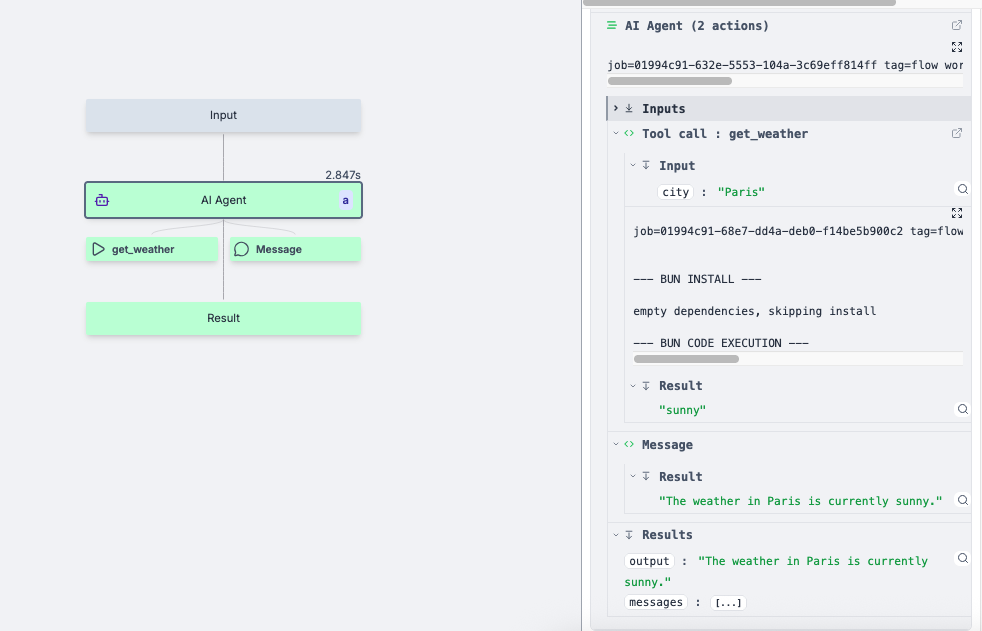
Tool calls are displayed directly on the flow graph as separate nodes connected to the AI Agent step. You can click on these tool call nodes to view detailed execution information, including inputs, outputs, and execution logs.
Detailed logging
In the logging panel of the AI Agent step, you can see the comprehensive logging:
- All input parameters passed to the AI agent
- Tool calls made by the AI, including which tools were selected and their inputs
- Individual tool execution results with full job details
- The final AI response and complete message history
This detailed view allows you to trace through the AI's decision-making process and verify that tools are being called correctly with the expected inputs and outputs.
Reusable agents
An AI agent step can be saved as a reusable agent: a resource of the built-in ai_agent resource type holding the agent's configuration (provider and model, system prompt, temperature, output schema, memory) and its tools.
Other flows link to the same agent, and edits to it propagate to every linked step.
Save as reusable agent sits at the top of the step's inputs when the agent is written inline. Once saved, the step shows a read-only card naming the agent, the version it is on, its configuration and its tools, with three actions:
- Evals runs the agent against a dataset of cases. See AI agent evals.
- Edit forks the agent into the step so you can change it. While editing, the card shows an unsaved changes badge that opens a diff against the deployed agent. Save changes writes back to the agent, updating every flow that links to it; Cancel drops the edits and re-links the step.
- Unlink copies the agent's configuration into this step as a one-off, so it can diverge here without affecting anything else.
Each host flow can override a linked agent's tool inputs for its own use: below the step's inputs, every tool gets a section with the standard input editors and a read-only view of its code. Those overrides belong to the flow, not to the agent.
Sharing works through the usual folder permissions on the resource. Deploying a linked flow to another workspace pulls the agent resource in as a dependency, and from there its provider resource and its tools.
Resolution is live, not pinned
A linked step resolves its agent when the step runs, which is what makes an edit propagate everywhere at once. It also means a run is not a snapshot: editing an agent while a flow is in flight affects the steps that have not started yet. Inline agents are unaffected, since their configuration lives in the flow value and is snapshotted with the run.
An agent's tools are also outside the flow's lockfile: republishing a script a tool points at does not re-lock the flows that link the agent, and a raw script tool resolves its dependencies when it runs.
Version history
Editing an agent resource appends a version, so its prompt, model and tool set can be diffed and restored from the History drawer of the resource editor. Restoring writes the old value forward as a new version rather than rewinding. The version number is what eval runs are recorded against and compared by.
A version captures the resource and not what it references: a $var: or $res: reference is stored as the reference, so two identical versions can behave differently because the referenced variable changed underneath them.
Past values are kept for up to 100 versions, and Clear past versions in the History drawer drops every version but the current one, which is worth doing after rotating a credential written inline into a resource.