Variables and secrets
When writing scripts, you may want to reuse variables, or safely pass secrets to scripts. You can do that with Variables. Windmill has user-defined variables and contextual variables.
Variables are dynamic values that have a key associated to them and can be retrieved during the execution of a Script or Flow.
All Variables (not just secrets) are encrypted with a workspace specific symmetric key to avoid leakage.
There are 2 types of Variables in Windmill: user-defined and contextual (including environment variables).
User-defined variables
User-defined Variables is essentially a key-value store where every user can read, set and share values at given keys as long as they have the privilege to do so.
They are editable in the UI and also readable if they are not Secret Variables.
Inside the Scripts, one would use the Windmill client to interact with the user-defined Variables.
- Python
- TypeScript (Bun)
- TypeScript (Deno)
import wmill

wmill.get_variable("u/user/foo")
wmill.set_variable("u/user/foo", value)
import { getVariable, setVariable } from 'windmill-client';

getVariable('u/user/foo');
setVariable('u/user/foo', value);
import { getVariable, setVariable } from 'npm:windmill-client@1';

getVariable('u/user/foo');
setVariable('u/user/foo', value);
Note that there is a similar API for getting and setting Resources
which are simply Variables that can contain any JSON values, not just a string
and that are labeled with a Resource Type to be automatically
discriminated in the auto-generated form to be of the proper type (e.g. a
parameter in TypeScript of type pg: Postgresql is only going to
offer a selection over the resources of type postgresql in the auto-generated UI).
There is also a concept of state to share values across script executions.
Environment variables
Environment variables are used to configure the behavior of scripts and services, allowing for dynamic and flexible execution across different environments.
Contextual variables
Contextual variables are variables whose values are contextual to the script execution. They are automatically set by Windmill. This is how the languages clients get their implicit credentials to interact with the platform.
Secrets
Secrets are encrypted when stored on Windmill. From a usage standpoint, secrets are kept safe in three different ways:
- Secrets can only be accessed by users with the right permissions, as defined
by their path. In addition, secrets can be explicitly shared with users or
groups. A secret in
u/alice/secretwill only be accessible byalice, unless explicitly shared. A secret inf/devops/secretwill be accessible by anyone with read access tof/devops. - Secrets cannot be viewed outside of scripts. Note that a user could still
printa secret if they have access to it from a script. - Accessing secrets generates
variables.decrypt_secretevent that ends up in the Audit logs. It means that you can audit who accesses secrets. Additionally you can audit results, logs and script code for every script run.
Add a variable or secret
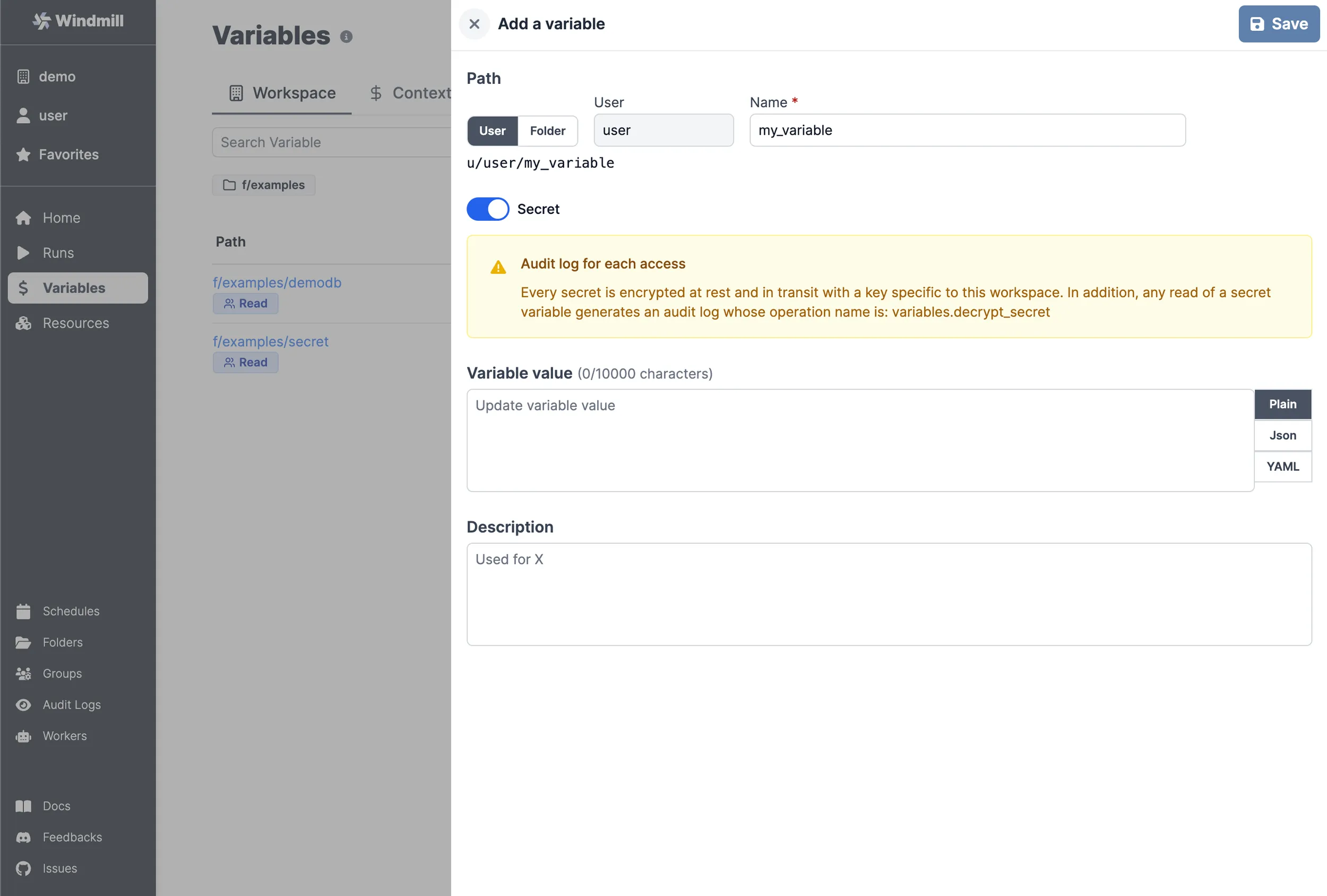
You can define variables from the Variables page. Like all objects in Windmill, variable ownership is defined by the path - see ownership path prefix.
Variables also have a name, generated from the path, and names are used to access variables from scripts.
A variable can be made secret. In this case, its value will not be visible outside of a script.
Secret masking in job logs
Windmill automatically masks secret values in job logs to prevent accidental leakage. When a job fetches a secret variable (or is given $encrypted: arguments), the plaintext values are tracked per-job and masked in stdout/stderr before logs are persisted.
When a masked value would appear in the logs, the first 3 characters are kept for debuggability and the rest is replaced by *****, followed by a one-time notice line:
my_*****
[windmill] secret value was masked for security reasons, use string transformations to display partial values
Notes:
- Only values of 8 characters or more are masked, to avoid false positives on short strings like
"true"or"1234". - Only the values of secret variables and decrypted
$encrypted:arguments are tracked — non-secret variables remain fully visible. - Masking happens in-memory before the logs are written to the database, so plaintext secrets never land in
job_logs. - If your script needs to display a partial secret (e.g. the last 4 characters of a token), use string transformations inside the script before logging, since the full match will always be masked.
Secret storage backends
By default, Windmill stores encrypted secrets in its own database using a workspace-specific symmetric key. On Enterprise Edition, superadmins can instead delegate secret storage to an external secret manager, keeping the ciphertext out of the Windmill database entirely.
Secret backends are configured instance-wide from Instance Settings → Secret backend. Changes take effect immediately without restarting the server, and Windmill provides a Test connection button plus bidirectional migration endpoints to move existing secrets between backends (Database → Vault/Key Vault and back).
Fail-closed by design: if the configured backend is unreachable, secret reads and writes fail rather than silently falling back to the database.
HashiCorp Vault backend
Windmill can store secrets natively in HashiCorp Vault using the KV v2 secrets engine.
Configuration requires:
- The Vault server URL and namespace (if applicable).
- A KV v2 mount path where Windmill will read and write secrets.
- A JWT auth role configured in Vault. Windmill exposes a JWKS endpoint at
/.well-known/jwks.jsonthat Vault uses to validate the short-lived JWTs Windmill issues on every secret operation. - Skip SSL verify (optional): disable TLS certificate verification for the Vault connection. Useful for development environments with self-signed certificates.
Once configured:
- All new and updated secret variables are written to Vault.
- Existing database-backed secrets can be migrated with the Migrate secrets to Vault action in Instance Settings.
- The reverse migration (Migrate secrets to Database) is also available to roll back.
Azure Key Vault backend
Windmill can also store secrets in Azure Key Vault. Configuration requires the Key Vault URL and service principal credentials (tenant ID, client ID, and either a client secret or Workload Identity Federation) with the necessary Get/Set/Delete permissions on the vault.
The migration and fail-closed semantics are identical to the Vault backend.
Azure Workload Identity Federation
Instead of providing a long-lived client secret, you can leave the Client Secret field empty and authenticate with Azure Workload Identity Federation. When the secret is omitted, Windmill reads the projected service-account JWT from the file at AZURE_FEDERATED_TOKEN_FILE and exchanges it with Microsoft Entra ID for an access token, so no secret is stored.
The Tenant ID and Client ID of the Entra ID application are still entered in the Instance Settings form. The Windmill server additionally needs the following environment variables:
AZURE_FEDERATED_TOKEN_FILE(required): path to the projected token, e.g./var/run/secrets/azure/tokens/azure-identity-token.AZURE_AUTHORITY_HOST(optional): defaults tohttps://login.microsoftonline.com; override for sovereign clouds.
On Azure Kubernetes Service (AKS) with the workload-identity webhook enabled, AZURE_FEDERATED_TOKEN_FILE and the projected token are injected automatically once the pod's service account is annotated and labeled for workload identity. The same flow works on any other Kubernetes cluster (EKS, GKE, self-hosted) that is federated to Entra ID via OIDC, as long as a projected token is mounted and AZURE_FEDERATED_TOKEN_FILE points to it.
AWS Secrets Manager backend
Windmill can store secrets in AWS Secrets Manager. Configuration requires:
- Region (required): the AWS region, e.g.
us-east-1. - Access key ID / Secret access key (optional): static AWS credentials. If omitted, the default AWS credential chain is used (IAM role, environment variables, etc.).
- Prefix (optional): prefix for secret names in AWS Secrets Manager, defaults to
windmill/. - Endpoint URL (optional): custom endpoint for testing with LocalStack.
The migration and fail-closed semantics are identical to the Vault and Azure Key Vault backends.
Sensitive and secret inputs
Resource, script and flow inputs can also be marked as sensitive so that their values are treated as secrets at submission time — not only when stored long-term.
Password/sensitive string fields
Any string field on a resource, script parameter or flow input can be flagged as Password / Sensitive in the schema editor. The field renders as a masked input in the auto-generated form and an eye icon lets users toggle visibility.
Multiline secrets (SSH private keys, PEM certificates, multi-line tokens) are supported: the field starts as a single-line password input and automatically switches to a masked textarea when multiline content is detected (pasted content with newlines, Enter pressed inside the field, or values already containing newlines). You can also force the textarea mode from the start by setting Min textarea rows > 1 in the schema editor.
Sensitive fields on non-string types
Object fields in script UI customization and flow inputs can also be marked Is sensitive. On submit, the value is stored as an ephemeral secret variable and replaced in the args with a $jsonvar:<path> reference. At job execution, Windmill fetches the variable and JSON-parses the value so the script still receives the original object — identical to how $var: works for string secrets, but for arbitrary JSON payloads.
$jsonvar: references are also clickable in the job args viewer for users with access.
Multiple secret fields per resource
When creating a resource, you can mark multiple fields as secret (e.g. both api_key and refresh_token on the same resource). Windmill creates one secret variable per sensitive field:
- If a single field is marked secret, a single variable is created at the resource path (unchanged behavior).
- If multiple fields are marked secret, each gets its own variable with
_<field_name>appended to the resource path.
This makes it easy to rotate individual credentials without touching the others, and keeps each sensitive value auditable on its own.
Accessing a variable from a script
Accessing contextual variables from a script
See the Contextual tab on the Variable page for the list of reserved variables and what they are used for.
You can use them in a Script by clicking on "+Context Var":
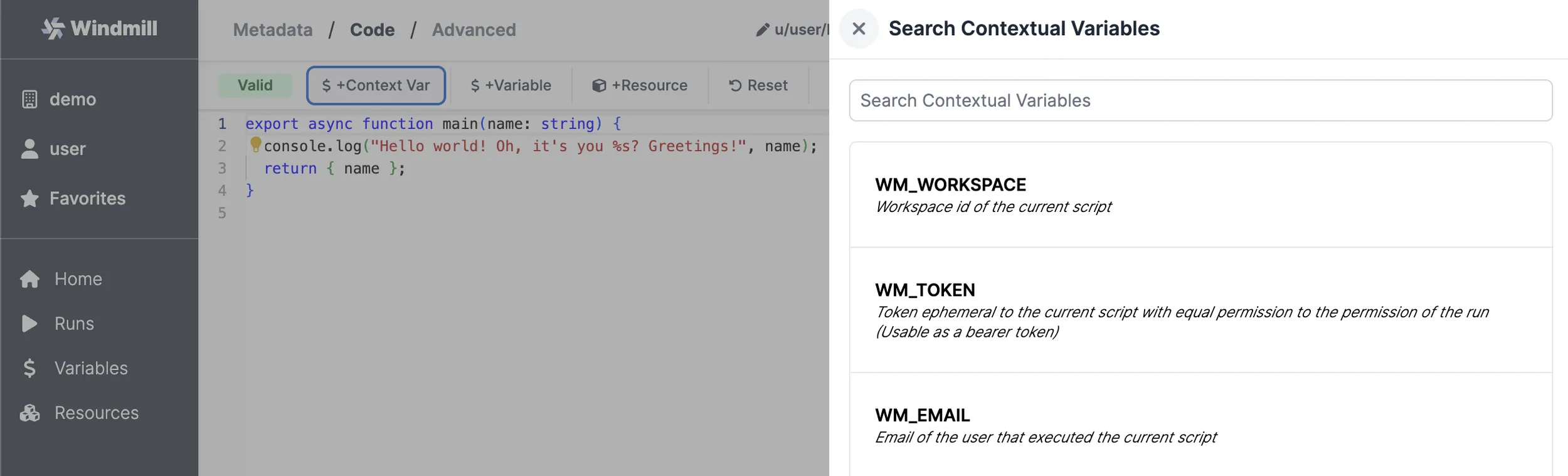
Reserved variables are passed to the job as environment variables. For example, the ephemeral token is passed as WM_TOKEN.
Accessing user-defined variables from a script
There are 2 main ways variables are used within scripts:
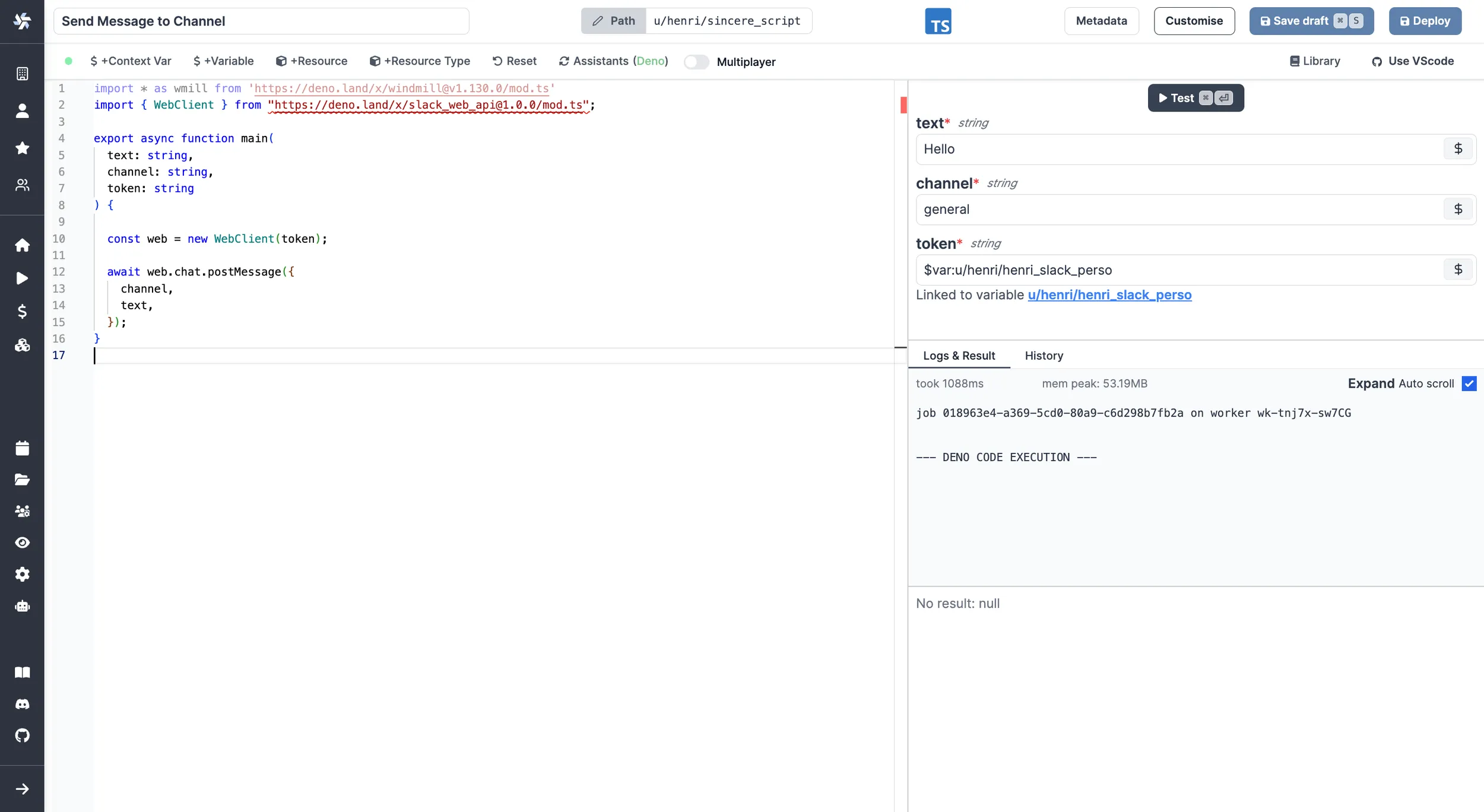
Passing variables as parameters to scripts
Variables can be passed as parameters of the script, using the UI-based variable picker. Underneath, the variable is passed as a string of the form: $var:<variable_path> and replaced by the worker at time of execution of the script by fetching the value with the job's permissions. So the job will fail if the job's permissions inherited from the caller do not allow access to the variable. This is the same mechanism used for resource, but they use $res: instead of $var:.
The $var: and $res: references are resolved recursively, including inside arrays and nested objects (up to depth 2, with a 1000-item limit on arrays). For example, an array parameter like ["$var:u/user/token1", "$var:u/user/token2"] will have each element resolved individually at execution time.
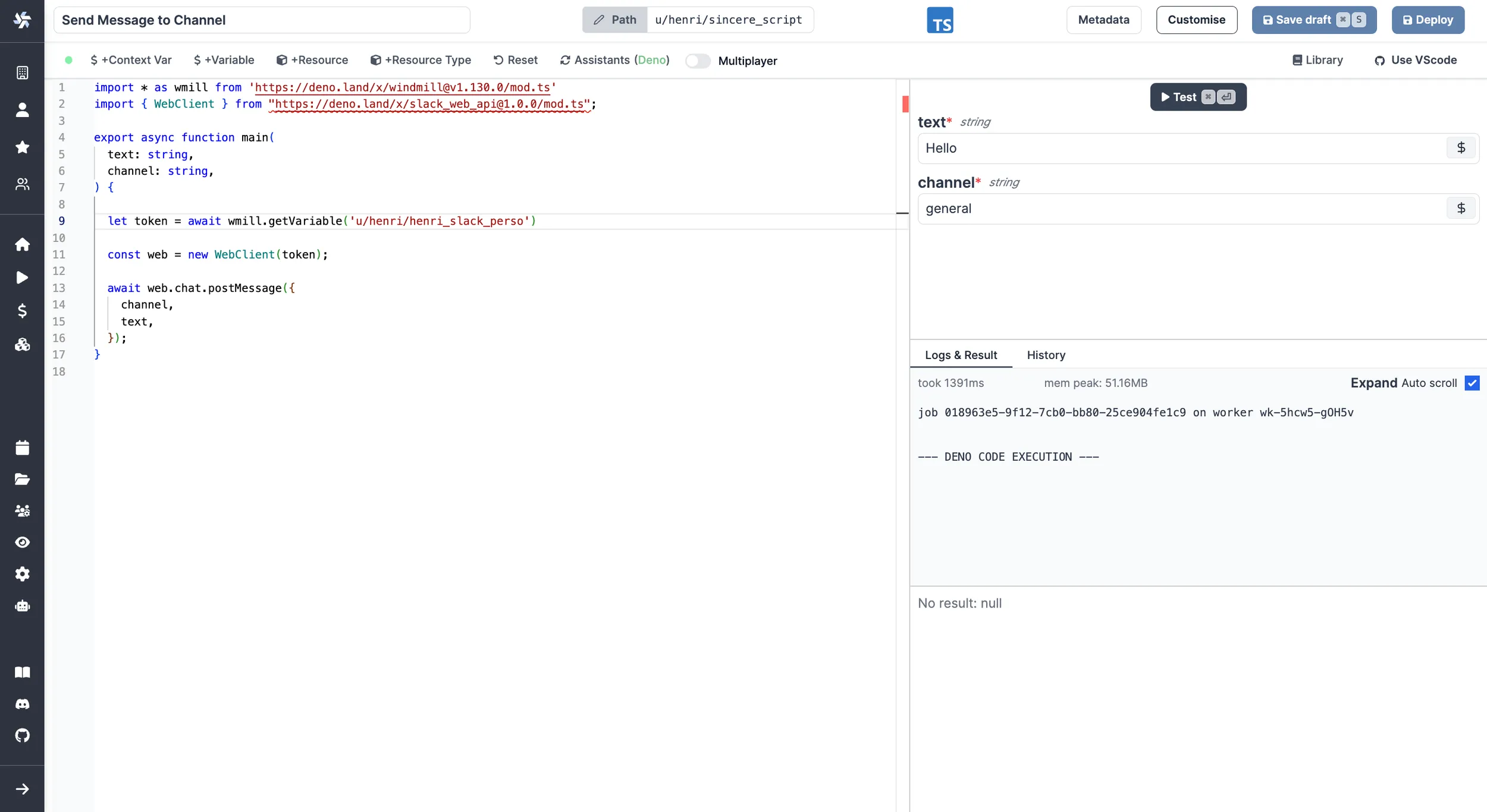
Fetching them from within a script by using the wmill client in the respective language
By clicking on + Variable, you'll get to pick a variable from your workspace and be able to fetch it from within the script.
TypeScript:
wmill.getVariable('u/user/foo');
Python:
wmill.get_variable("u/user/foo")
Go:
wmill.GetVariable("u/user/foo")
Bash:
curl -s -H "Authorization: Bearer $WM_TOKEN" \
  "$BASE_INTERNAL_URL/api/w/$WM_WORKSPACE/variables/get/u/user/foo" \
    | jq -r .value
PowerShell:
$Headers = @{
  "Authorization" = "Bearer $Env:WM_TOKEN"
}
Invoke-RestMethod -Headers $Headers -Uri "$Env:BASE_INTERNAL_URL/api/w/$Env:WM_WORKSPACE/variables/get/u/user/foo"
Nu:
get_variable u/user/foo
Examples in bash and PowerShell showcase well how it works under the hood: It fetches the secret from the API using the job's permissions through the ephemeral token passed as an environment variable to the job.
Mocked API files
Simulate API interactions locally by using a JSON file to store and retrieve variables and resources.