AI chat & copilots
Windmill provides AI assistance across the platform. AI sessions (beta) are the primary, full-page way to build with AI; this page covers the rest: the AI chat, the in-editor copilots for scripts, flows and apps, and the model providers and settings they all share.
If you're rather interested in leveraging OpenAI from your scripts, flows and apps, check OpenAI Integration.
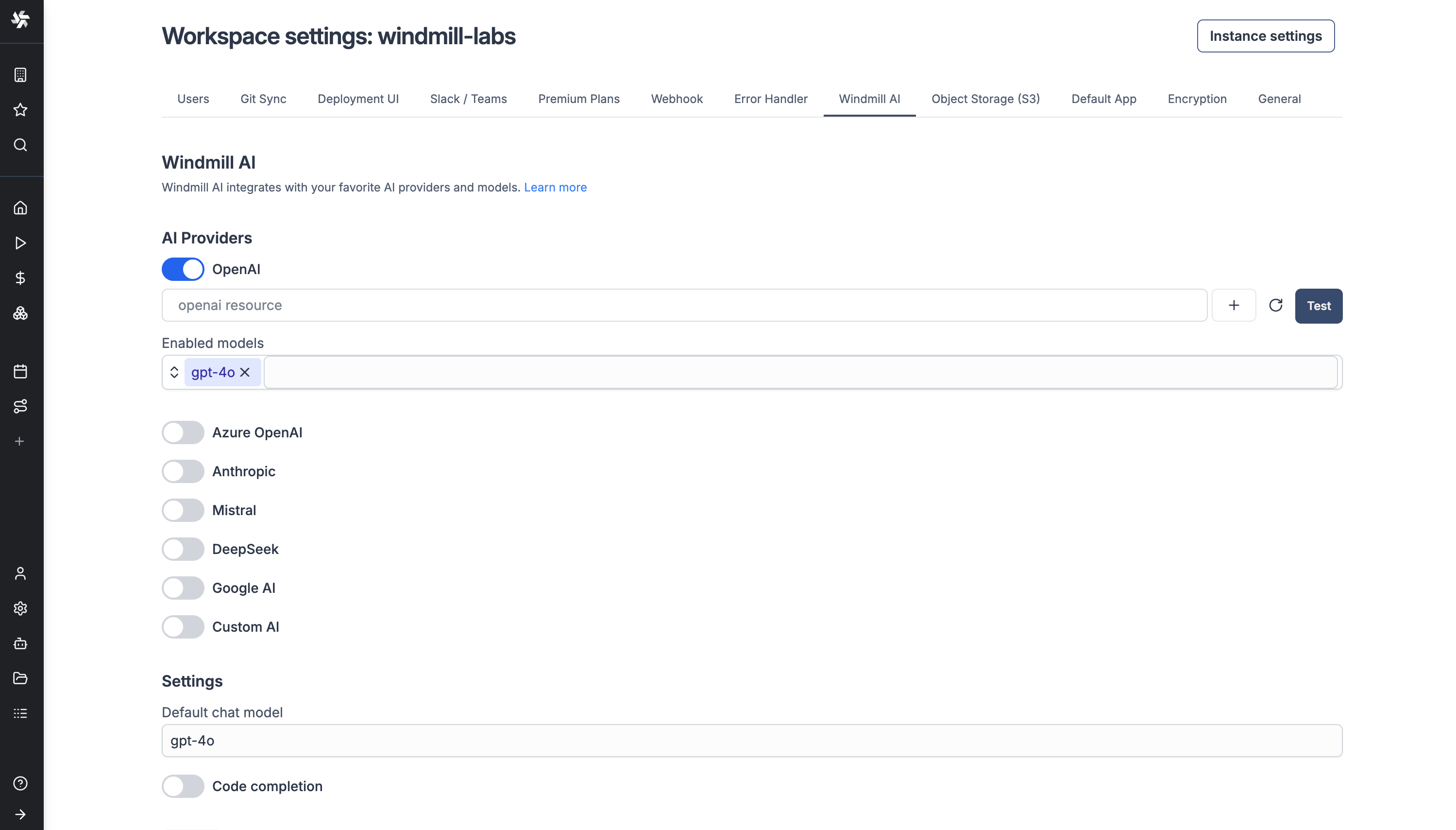
To enable Windmill AI, go to the "Windmill AI" tab in the workspace settings and add a supported model's resource. Code completion is disabled by default, but you can enable it in the same tab. The same tab has a toggle to hide the assistant from the workspace UI.
Windmill AI Chat
The AI chat runs in one of several modes. The global mode is the one AI sessions use, and it can do everything the earlier modes could: answer questions about Windmill, navigate the app, operate on your workspace through the API and build workspace items, all from one conversation. The earlier navigation and API modes are legacy: they remain available in the legacy side-panel chat during the AI sessions beta, and every capability they offered is included in the global mode.
The chat can assist you with:
- Answer questions about Windmill: Get explanations about features, concepts, and best practices for using the platform effectively.
- Navigate the app: The AI can guide you through the Windmill interface, helping you locate specific features, settings, and tools you need.
- Review and deploy changes: Once the AI has edited items, ask it to review the changes and it opens the Compare & Deploy page with exactly those items preselected, ready to deploy.
- Provide documentation links: When you need more detailed information, the AI will direct you to relevant sections of this documentation for deeper learning.
- Fetch API information: The AI can retrieve and explain relevant API details to help you understand what data and options are available for your use case.
- Fill script and flow inputs: Speed up your workflow by letting the AI automatically populate form fields for scripts and flows based on context and your requirements.
- Custom form filling instructions: You can provide specific instructions to the AI on how to fill out forms in script and flow settings, making it adapt to your particular workflow needs.
- Inspect database schemas: Ask about the tables and columns of a database resource (PostgreSQL, MySQL, MS SQL Server, Snowflake or BigQuery) by referencing its resource path. The AI fetches the schema with a
get_db_schematool, and calls it automatically before writing SQL queries against a database resource instead of guessing your schema. This tool is also available in AI sessions.
This makes Windmill more accessible by providing contextual help exactly when and where you need it, whether you're learning the platform or looking for quick assistance during development.
When the AI includes a Mermaid diagram in its response, the chat renders it directly in the conversation. Rendered diagrams have a copy button in their top-right corner to copy the raw Mermaid source, just like regular code blocks.
When writing scripts or raw apps from the chat, the AI can search the npm registry for packages with a search_npm_packages tool. It fetches each package's documentation and TypeScript type definitions, so you can ask it to find and use an npm package even without a script editor or app open, and it will link the package docs in its answer.
For building whole projects with the AI chat, AI sessions (in beta) provide a full-page environment where each chat is tied to a workspace or fork, with a live preview panel, a diff and deploy flow, background jobs and artifacts. AI sessions are enabled by default during the beta and replace this side panel chat; a banner under the session chat lets you switch back to the side panel as the legacy chat, and a matching banner in the legacy chat reactivates sessions. Operators keep the legacy chat and do not have access to sessions.
In its global mode, the chat footer has an assistant settings button that both accounts for what the chat carries into a turn - its tools, the AI skills and MCP servers turned on for it, the custom instructions in its system prompt and the files linked to it - and is where each of those is changed. It replaces the earlier context popover and the separate skills and MCP drawers: see assistant settings.
Attaching files
You can attach images and text files to a chat message using the attach button, drag and drop, or paste. Attachments appear as chips in the input box, are sent with the next message, and are cleared after sending.
Text files are limited to 8 per message and 1 MB per file. Their content is not inlined into the prompt: the message carries a reference (file name and size), and the AI reads the content on demand through its file tools (read_file, search_files). This keeps the conversation history small since file content is never resent on later turns, regardless of file size.
Folders attached to the chat work differently: they are session-wide assets that stay available for the whole conversation and appear in the footer next to the mode picker, rather than being tied to a single message. As a rule, the input box shows what ships with your next message (text, images, files, @ context), while the footer holds session-wide context.
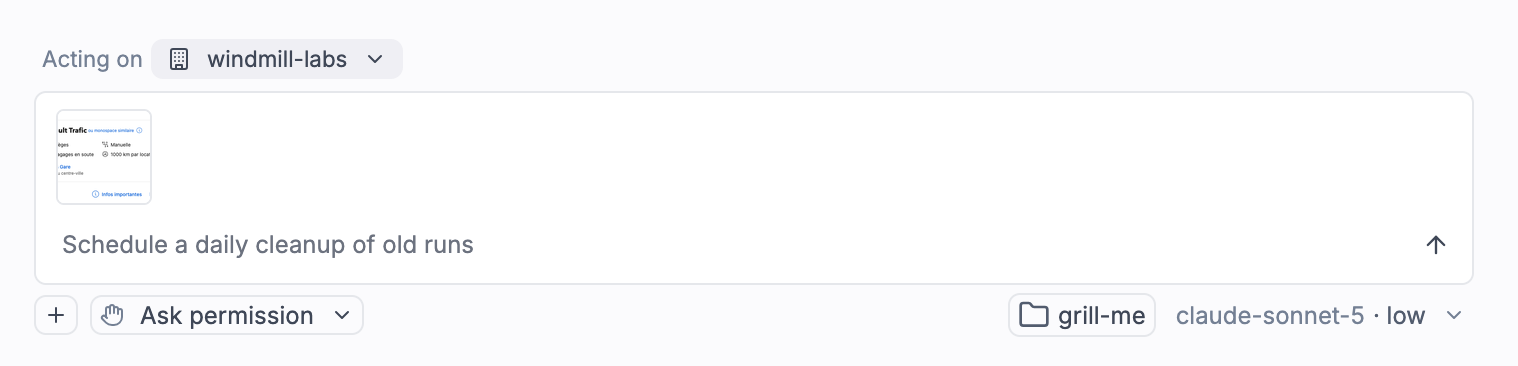
Image attachments
Images are useful to share a screenshot of a visual bug, a design mockup, or a diagram for the AI to work from. You can send up to 8 images per message (20MB and 40 megapixels each), with or without accompanying text. Click any image thumbnail to view it at full resolution.
The selected model must support image input. If it doesn't, Windmill either blocks the attachment upfront or, for models it can't verify, drops the images from the conversation if the provider rejects them (your text is kept and you're notified so you can switch to a vision-capable model).
Web search
With an OpenAI or Anthropic provider, the AI chat can use the provider's native web search tool to look up current information. It is enabled by default and can be turned off per provider with the "Enable native web search" toggle in the "Windmill AI" tab of the workspace settings. Web search is available in all chat modes.
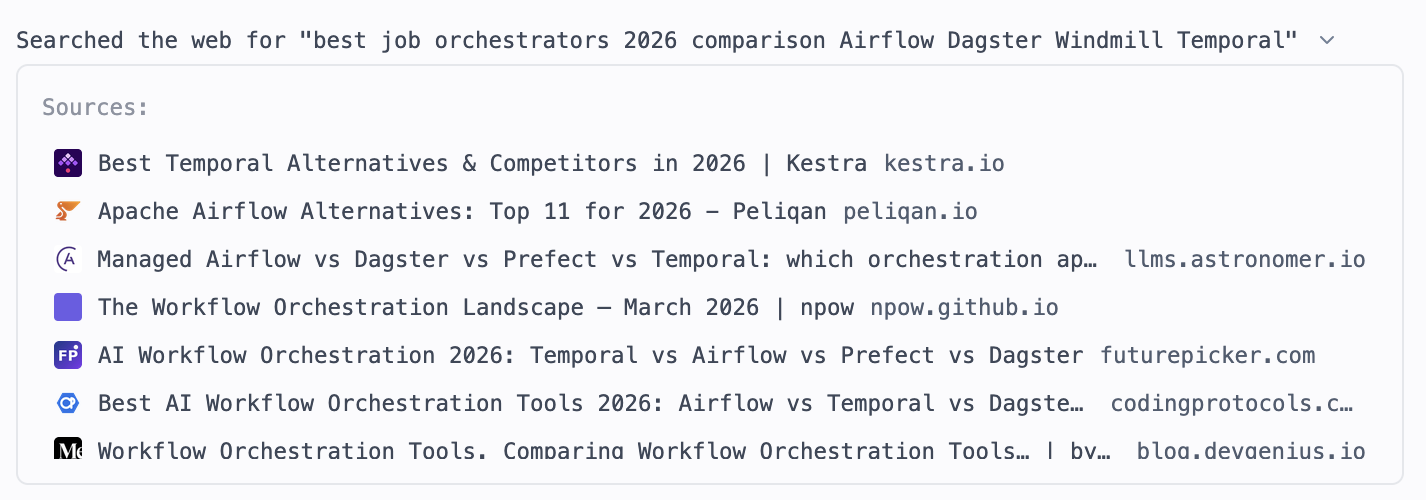
When the AI searches the web, the tool card in the chat shows the search query as it is typed, then expands with the list of consulted sources (favicon, page title and link) as each search completes, while the model continues its answer. Sources are kept with the conversation history.
API endpoint catalog
The AI chat can search and call Windmill's REST API endpoints directly, so it can perform operations on your workspace that no dedicated tool already covers, such as reading a run's result or arguments, checking queue and worker state, or running a deployed item. It uses three tools:
search_api_endpoints: discovers endpoints by keyword. It returns the matching endpoint names along with their parameter names and usage instructions, so the AI learns what is available without loading every endpoint schema up front. If nothing matches, it returns the list of endpoint categories to guide the next search.call_api_get: calls a read-onlyGETendpoint by name. Because it only reads data, it runs without asking for confirmation.call_api_endpoint: calls a mutating endpoint (create, update, run, etc.). These calls always ask you to confirm before they run, so nothing changes your workspace without your approval.
The workspace is filled in automatically, and full endpoint schemas are surfaced on demand: parameter names appear in search results, and if a call fails validation (for example a missing path parameter or a 4xx response) the endpoint's full parameter schema is returned so the AI can correct itself in the next call.
Some endpoints are intentionally excluded from the catalog tools and redirect the AI to a dedicated tool instead:
- Authoring operations (creating or editing scripts, flows, apps, schedules and resources) go through the draft tools, which preserve the draft lifecycle and conflict detection.
- Deletions go through
delete_workspace_item, which handles draft and fork cleanup. - Variable reads are blocked for security, since variable values must never reach the model (variables can hold decrypted secrets).
These API endpoints are also available through the Model Context Protocol (MCP), enabling seamless integration with MCP-compatible tools and clients for automated workflow management.
Reasoning models
Reasoning-capable models can have their reasoning effort set per model from the chat's model settings menu, across providers such as Anthropic, OpenAI, Gemini, DeepSeek and Mistral. When a model streams its reasoning, the chat shows it in an expandable "Thinking" block above the reply.
OpenAI only returns reasoning summaries to organizations that have completed organization verification. Without it, the model still reasons and answers normally, but its thinking stays hidden. To show it, verify your organization in the OpenAI platform settings, then reload the page.
Windmill AI for scripts
AI Chat
The script editor includes an integrated AI chat panel designed to assist with coding tasks directly. The assistant can generate code, identify and fix issues, suggest improvements, add documentation, and more.
You can open the AI chat panel using Cmd+L (Mac) or Ctrl+L (Windows/Linux). When you have code selected, it will automatically include the selected code in your message to the AI.
Key features:
- When the AI suggests code changes, you can apply or discard specific parts of the suggestion, rather than having to accept or reject the entire block.
- You can provide additional context to guide the AI's suggestions, such as database schemas, deployed script diffs, runtime errors, and workspace scripts or flows. Access the context menu by clicking the context button or typing
@directly in the chat input. - The AI has access to a
search_workspacetool to find relevant scripts and flows in your workspace, and aget_runnable_detailstool to inspect their schema and content. These tools are available across navigator, script, flow, and app chat modes. - For TypeScript scripts, a
search_npm_packagestool lets the AI search the npm registry and fetch package documentation and type definitions, so generated code uses real, up-to-date package APIs. This tool is also available in the global chat. - The panel includes built-in shortcuts for common tasks like fixing bugs or optimizing code.
Code completion
The script editor includes code autocomplete that provides real-time suggestions as you type. Currently, this feature requires Mistral Codestral, which excels at code completion thanks to their specialized FIM (Fill-in-Middle) endpoint.
The autocomplete feature can be enabled globally in the workspace settings. Individual users can then toggle it on or off in their personal script editor settings.
Summary copilot
From your code, the AI assistant can generate a script summary.
Legacy AI features
The following guides are still applicable for code editing of inline scripts inside flows and apps.
Code generation
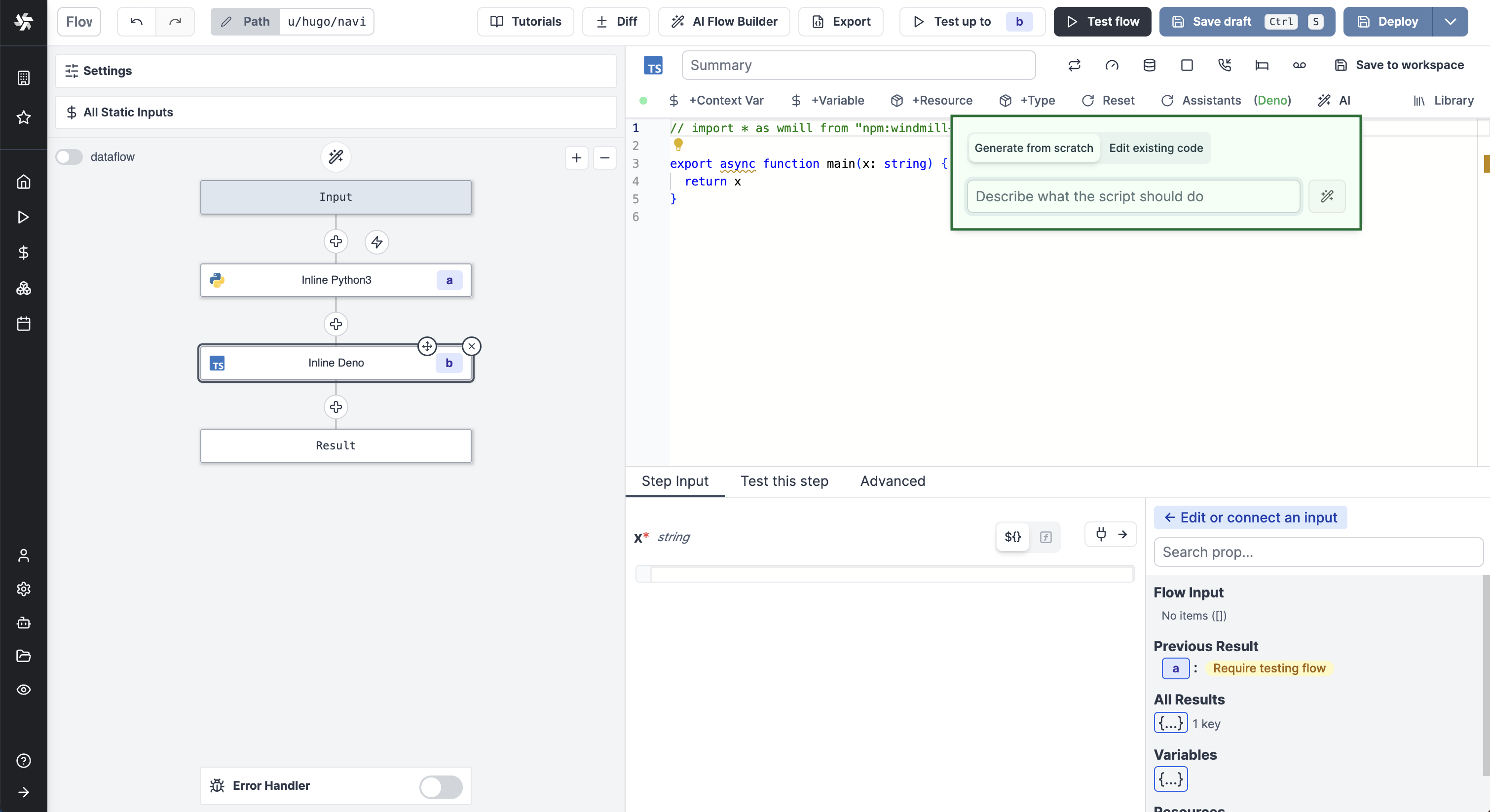
In a code editor (Script, Flow, Apps), click on AI and write a prompt describing what the script should do. The script will follow Windmill's main requirements and features (exposing a main function, importing libraries, using resource types, declaring required parameters with types). Moreover, when creating an SQL or GraphQL script, the AI assistant will take into account the database/GraphQL API schema when selected.
The AI assistant is particularly effective when generating Python and TypeScript (Bun runtime) scripts, so we recommend using these languages when possible.
Moreover, you will get better results if you specify in the prompt what the script should take as parameters, what it should return, the specific integration and libraries it should use if any.
For instance, in the demo video above we wanted to generate a script that fetches the commits of a GitHub repository passed as a parameter, so we wrote: fetch and return the commits of a given repository on GitHub using octokit.
Code editing
Inside the AI Gen popup, you can choose to edit the existing code rather than generating a new one. The assistant will modify the code according to your prompt.
Code fixing
Upon error when executing code, you will be offered to "AI Fix" it. The assistant will automatically read the code, explain what went wrong, and suggest a way to fix it.
Windmill AI for flows
AI Flow Chat
The flow editor includes an integrated AI chat panel that lets you create and modify flows using natural language. Just describe what you want to achieve, and the AI will build the flow for you, step by step.
It can add scripts, loops, and branches, searching your workspace and Windmill Hub for relevant scripts or generating new ones when needed or on request. It automatically sets up flow inputs and connects steps by filling in parameters based on context. For loops and branches, the AI sets suitable iterator expressions and predicates based on your flow's data.
Script mode in AI Flow Chat
If you're working on an inline script in your flow, you can switch to script mode using the toggle to access the same AI assistance as in the script editor — including the ability to add context like database schemas, diffs, and preview errors, along with granular apply/reject controls and quick actions.
Summary copilot for steps
From your code, the AI assistant can generate a summary for flow steps.
Step input copilot
When adding a new step to a flow, the AI assistant will suggest inputs based on the previous steps' results and flow inputs.
Flow loops iterator expressions from context
When adding a for loop, the AI assistant will suggest iterator expressions based on the previous steps' results.
Flow branches predicate expressions from prompts
When adding a branch, the AI assistant will suggest predicate expressions from a prompt.
Windmill AI for full-code apps
The full-code app builder includes an integrated AI chat panel that lets you create and modify apps using natural language. Just describe what you want to achieve, and the AI will build the app for you, step by step.
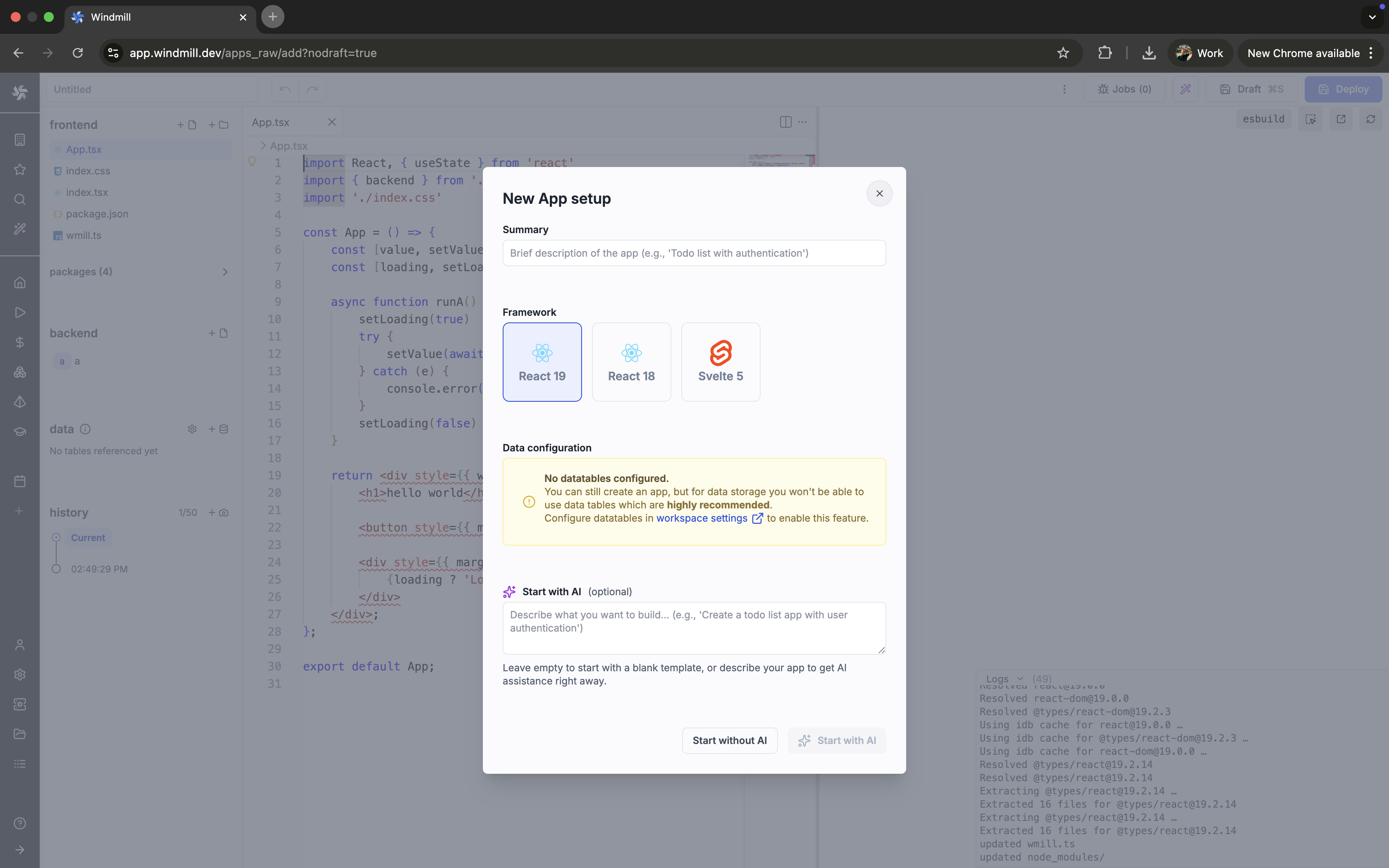
App preview screenshots
In AI sessions, when a full-code app preview is open, the agent can capture it with a take_screenshot tool to see the rendered UI. It uses this when you raise how the app looks, for example a visual bug or a design change, rather than after every edit.
This tool only works on Google Chrome (and other Chromium-based browsers), and requires a model that supports image input. On other browsers the agent will instead ask you to take a screenshot yourself and drop it into the chat.
AI form filling
The AI assistant can fill script and flow run forms based on your requirements. To enable it, go to the script or flow settings and enable "AI Form Filling". You will also be able to provide specific instructions to the AI on how to fill out the run form, making it adapt to your particular workflow needs.
CRON schedules from prompt
The AI assistant can generate CRON schedules from a prompt.
Models
Windmill AI supports:
- OpenAI's models (o1 currently not supported)
- Azure OpenAI's models
- Base URL format:
https://{your-resource-name}.openai.azure.com/openai
- Base URL format:
- Azure AI Foundry's models: the broader Foundry catalog beyond Azure OpenAI, including OpenAI models plus Llama, DeepSeek, Mistral, Phi and more
- Base URL format:
https://{your-resource-name}.services.ai.azure.com/openai
- Base URL format:
- Anthropic's models (including Claude 3.7 Sonnet in extended thinking mode)
- Mistral's Codestral
- DeepSeek's models
- Google's Gemini models
- Groq's models
- OpenRouter's models
- Together AI's models
- AWS Bedrock's models
- Custom AI: base URL and API key of any AI provider that is OpenAI API-compatible
- For Ollama and other local models, select "Custom AI" and provide your Ollama server URL (e.g.,
http://localhost:11434/v1for local Ollama or your custom endpoint)
- For Ollama and other local models, select "Custom AI" and provide your Ollama server URL (e.g.,
If you'd like to use a model that isn't in the default dropdown list, you can use any model supported by a provider (like gpt-4o-2024-05-13 or claude-3-7-sonnet-20250219) by simply typing the model name in the model input field and pressing enter.
On OpenAI and Azure OpenAI, the AI chat sends a prompt_cache_key (derived from the workspace, provider and model) on Responses API requests so OpenAI can reliably reuse a cached prompt prefix, which matters from gpt-5.6 on where cache writes are billed. See prompt caching for how the same mechanism applies to AI agent steps.
Provider-specific configuration
Some providers accept additional fields on their resource beyond the base URL and API key.
AWS Bedrock
Bedrock accepts any of three authentication modes on the resource — the worker picks the first one that is fully provided:
- Long-term IAM user keys: set
awsAccessKeyIdandawsSecretAccessKey, plus an optionalawsSessionTokenwhen you are using temporary credentials (e.g. from AWS STS). - Bedrock bearer API key: set the resource's
apiKeyto an Amazon Bedrock API key. This takes precedence over the IAM key pair when both are set. - Ambient IAM role: leave
apiKeyand the access keys empty. The worker falls back to the default AWS credential chain (IRSA / EKS Pod Identity / EC2 instance profile /AWS_*environment variables) resolved against the configuredregion.
The region field is required in all cases. Bedrock requests use the AWS SDK's native Converse API, so models are referenced by their native Bedrock model id (e.g. anthropic.claude-3-5-sonnet-20241022-v2:0).
Anthropic
- 1M context window: enable the
enable_1m_contexttoggle on an Anthropic resource to send theanthropic-beta: context-1m-2025-08-07header with every request. This unlocks the 1M-token context window on compatible Claude models. The flag is ignored when the Anthropic resource is routed through Google Vertex AI.
Google Gemini / Anthropic on Vertex AI
Both the googleai and anthropic resources expose a platform field that switches between the provider's standard API and Google Vertex AI:
platform: standard(default) — the provider's public API.platform: google_vertex_ai— route requests through Vertex AI. Setbase_urlto your Vertex endpoint andapi_keyto an OAuth2 access token for a Google Cloud service account with theVertex AI Userrole.- Gemini example:
https://{region}-aiplatform.googleapis.com/v1/projects/{project}/locations/{region}/publishers/google/models - Claude-on-Vertex example:
https://{region}-aiplatform.googleapis.com/v1/projects/{project}/locations/{region}/publishers/anthropic/models
- Gemini example:
base_url overrides are also honored on the standard platform, which is useful for pointing an Anthropic or Gemini resource at an internal proxy.
Custom AI (customai)
In addition to base_url and api_key, the customai resource accepts a headers object mapping header names to values. Those headers are attached to every AI request made with that resource, which is handy for upstream proxies, gateway auth, or routing metadata.
{
  "base_url": "https://my-gateway.example.com/v1",
  "api_key": "sk-...",
  "headers": {
    "X-Tenant-Id": "team-42",
    "X-Route": "prod"
  }
}
Resource-level headers are applied after the instance-wide AI_HTTP_HEADERS env var, so they take precedence on conflicting keys.
Azure OpenAI (azure_openai) and Azure AI Foundry (azure_foundry)
Both providers use the same Azure conventions: they authenticate with the api-key header and require a base_url on the resource (Windmill builds the Azure-style request path from it).
azure_openaiis limited to the Azure OpenAI model catalog. Base URL format:https://{your-resource-name}.openai.azure.com/openai.azure_foundryexposes the broader Azure AI Foundry catalog over an OpenAI-compatible chat completions API: the OpenAI models plus Llama, DeepSeek, Mistral, Phi and more. Base URL format:https://{your-resource-name}.services.ai.azure.com/openai.
Pick the model from your Foundry deployment by typing its name in the model input (e.g. Llama-3.3-70B-Instruct, DeepSeek-R1, Phi-4, Mistral-Large-2411) or select one of the defaults in the dropdown.
Instance-wide AI HTTP headers
Set the AI_HTTP_HEADERS environment variable on the server and workers to attach custom headers to every outgoing AI request (OpenAI, Anthropic, Azure, Bedrock, etc.). Headers are comma-separated:
AI_HTTP_HEADERS="X-Org: acme, X-Env: prod" ./windmill
This is the right knob when every AI request in the instance must traverse a corporate proxy or gateway that expects fixed auth/routing headers.
Instance-level AI settings
Superadmins can configure AI providers, models, and prompts once at the instance level and have every workspace inherit them. Navigate to Instance settings → AI to set it up.
Resolution order for the AI config used by chat, code generation, and code completion:
- Workspace AI settings when the workspace has any provider configured — these always win.
- Instance AI settings as the fallback when the workspace has no providers configured.
The fallback resources are read from the admins workspace, so any resources referenced by instance AI settings must exist there.
In a workspace that is using the instance fallback, the Windmill AI settings page shows a read-only "Active instance AI" summary and an Override for this workspace button to reveal the editable workspace form. Clearing the workspace providers reverts the workspace to the instance fallback immediately, without a page refresh.
Non-admin members can use AI chat whenever either scope is configured — they do not need access to workspace or instance settings.
Hiding the AI assistant in a workspace
Workspace admins can hide the Windmill AI assistant from a whole workspace with the "Hide AI sessions" toggle at the bottom of the "Windmill AI" tab of the workspace settings. AI sessions, the AI chat, code generation and completion, "AI Fix" and the other AI buttons then disappear for every member.
AI agent steps and the AI sandbox keep working: the toggle only hides the assistant in the UI, it does not restrict API access to the configured providers.
AI usage and cost
Windmill records the tokens every AI chat spends, per user, model and provider, and prices them so you can see what a workspace is spending on AI. Two panels show it:
- "AI usage", in the workspace's Windmill AI settings: the whole workspace's spend, grouped by day, user or model. Workspace admins only.
- "Your AI usage", in your user settings: your own spend in the workspace the chat runs in.
Both cover the last 7, 30 or 90 days and list input tokens (cache reads and writes included), output tokens, request count and cost per row.
Usage comes from the chat, so it covers AI sessions and the legacy side panel chat. Code completion, the legacy code generation, editing and fixing copilots, and AI agent steps in flows are not counted.
Costs are computed from the rates in force when you look, not from the ones in force when the chat ran, so correcting a rate also corrects past usage.
Estimated and reported costs
A cost prefixed with ~ is an estimate: token counts multiplied by Windmill's built-in list price for that model. A cost shown without it is the figure the provider billed back, used as is. OpenRouter is currently the only provider that returns one. A row or a total that mixes both sources keeps the ~.
Windmill's built-in list prices are a best-effort snapshot, and a model it cannot price confidently is left unpriced rather than guessed at. Such a model shows "no rate", and its spend stays out of the total, which is then marked partial. Expect this on models under a promotional rate, on models whose rate changes above a context threshold (Gemini Pro, Anthropic's 1M context window), and on providers with fast-moving catalogs (DeepSeek, Mistral, Groq, Together AI, Custom AI). Set a rate yourself to price them.
Model pricing overrides
The "Model pricing" panel of the Windmill AI settings lists every configured model per provider and takes rates in USD per million tokens: input, output, cache read and cache write. Use it for negotiated rates, for models Windmill does not price, or to correct a list price that has changed. An override never replaces a cost the provider reported.
Rates can be set on the workspace AI config and on the instance-level one, where every workspace inheriting it is priced with them.
Leaving a cache rate empty inherits it from the input rate at the model's published ratio, with the resulting figure shown as the field's placeholder. A rate of 0 prices those tokens as free.
Usage API
GET /w/{workspace}/ai/usage (listAiUsage) returns the same aggregated buckets, taking days (1 to 365, defaults to 30), group_by (day, user or model) and scope (workspace, admin only, or self). A truncated: true in the response means more buckets matched than were returned, so summing them under-reports.
POST /w/{workspace}/ai/usage (recordAiUsage) is how the chat reports its own tokens. Events are always attributed to the caller, so it cannot record usage on someone else's behalf.