Auto-generated UIs
Windmill automatically generates user interfaces (UIs) for scripts and flows based on their parameters.
You might also be interested in Windmill's full-code apps for building custom frontends in React or Svelte, or the low-code app editor (legacy) for drag-and-drop UIs.
By analyzing the parameters of the main function, Windmill generates an input specification for the script or flow in the JSON Schema format. Windmill then renders the UI for the Script or Flow from that specification.
You don't need to directly interact with the JSON Schema associated with the Script or Flow. It is the result of the analysis of the script parameters of the main function and the optional UI customization.
The parsing of the main function will be used to generate an UI for scripts, or scripts used as flow steps (useful to link steps together). The auto-generated UI of a flow is made from Flow Input.
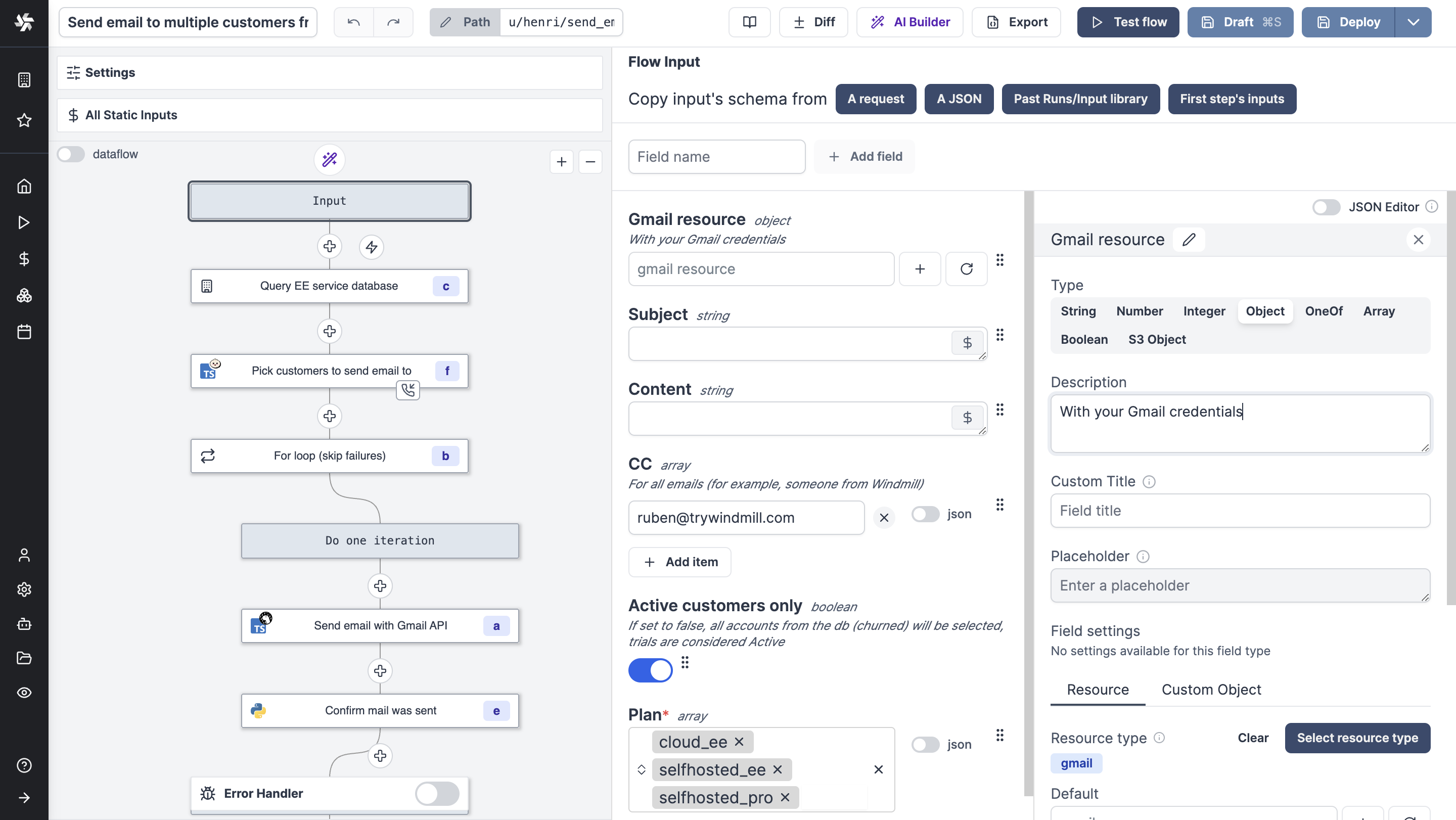
In the UI customization interface, you can refine information that couldn't be inferred directly from the parameters, such as specifying string enums or restricting lists to numbers. You can also add helpful descriptions to each field.
Advanced settings
Scripts' main function or flow input arguments can be given advanced settings (custom title, placeholder, field settings per type, enums, formats, etc.) that will affect the inputs' auto-generated UI and JSON Schema. See Advanced settings for the full list of settings per type.
AI form filling
Windmill can automatically fill your script and flow input forms using AI to save you time and effort.
You can enable that feature from your script or flow settings. You can also provide custom instructions to guide the AI on how to fill the form, making it adapt to your specific workflow needs.
This feature is powered by Windmill AI, which provides comprehensive AI assistance throughout the platform.
Test code
In Windmill Web IDE or VS Code extension, auto-generated UIs can be directly used in the script & flow editors to test your code.
Build App
You can generate a dedicated app to execute your script or flow.
This is the recommended way to share scripts and flows with operators, the second option being to share the script and the variables it depends on. Note that sharing a variable with an operator gives them read access to its value, secrets included (see Operator).
The apps will be permissioned on behalf of the admin/author, the user is still identified at the time of execution from the Runs and Audit logs menus.
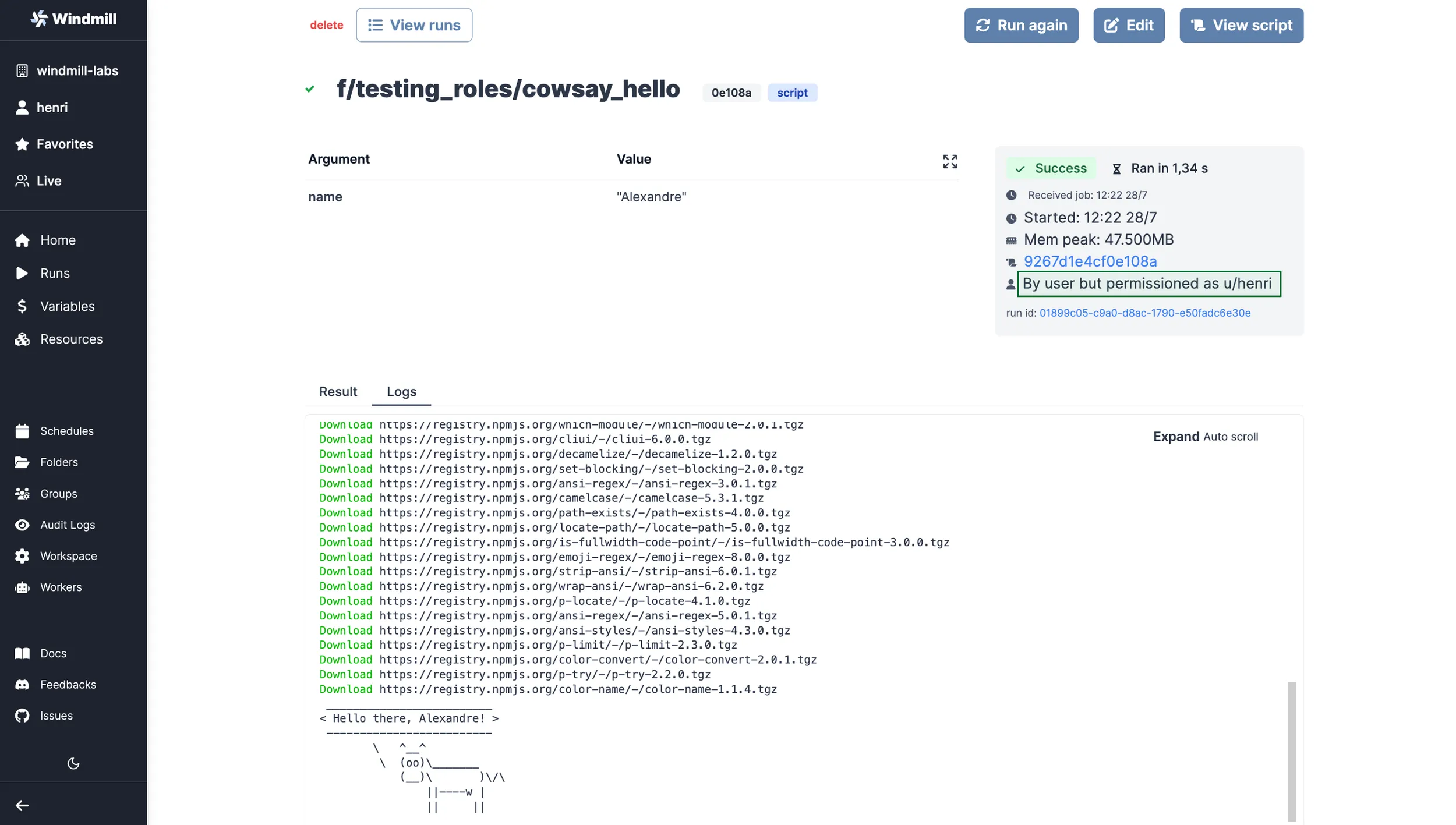
View from the Runs menu.
At last, this is an easy way to get an app for your scripts and flows to be customized with Styling and Components.
Types
Each type in Windmill has its own UI representation.
You can also check special types that are types that are made by Windmill and have a particular behavior in the UI.
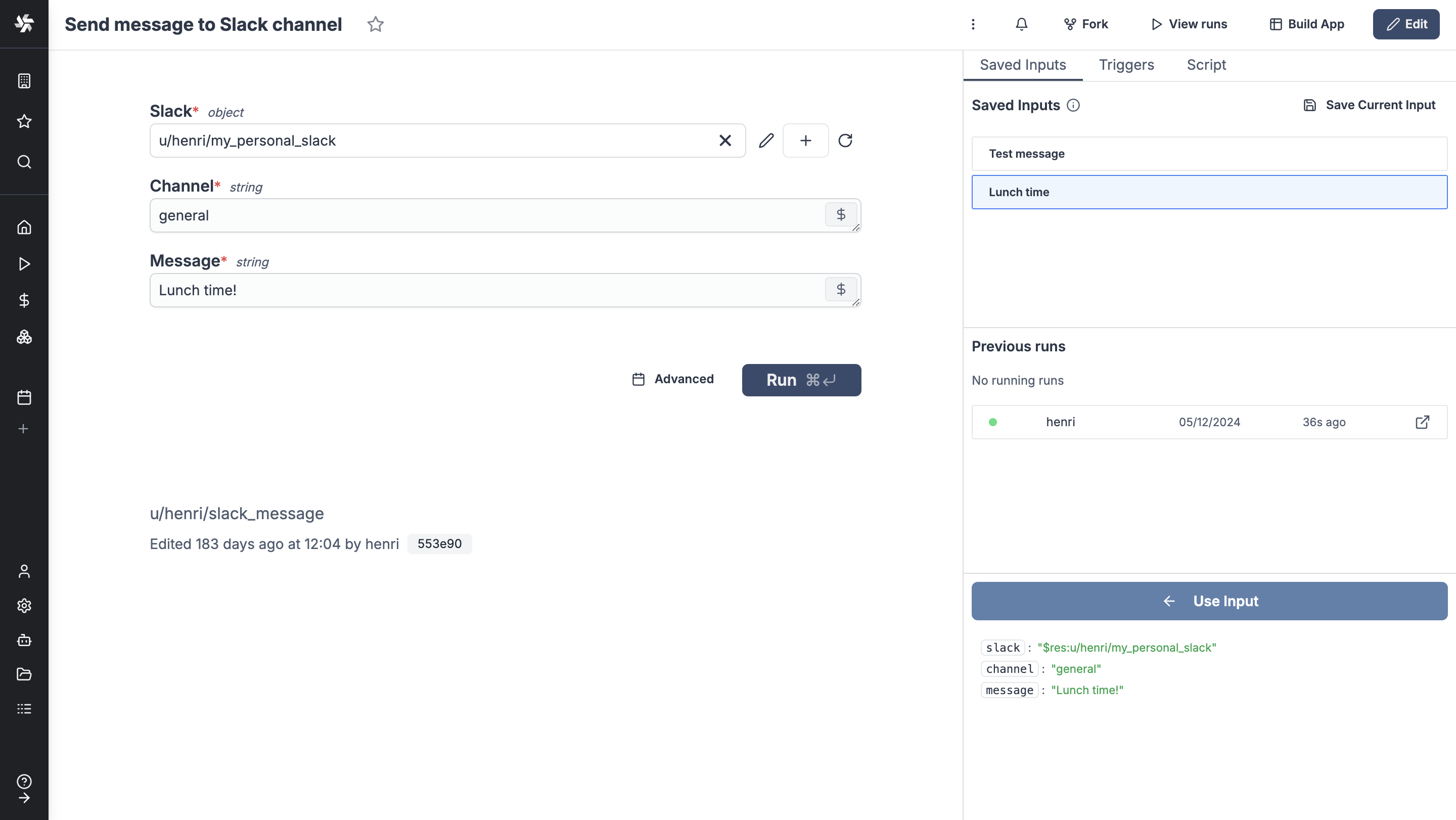
Saved inputs
Each deployed script or flow can have its own saved inputs.
From a deployed script or flow, fill inputs and click on the Save Current Input button to save the inputs.
You can then reuse them by clicking on the input and then 'Use Input'. It's an easy way to quickly use recurrent inputs without having to enter pre-set settings or creating an app.
Each saved input can be named and 'Shared' with the users having access to the script or flow.