Git sync
Git sync lets Windmill workspaces be tracked by git. Each time an item is deployed, Windmill will create and push a commit to the specified repository. The reverse direction works too: Windmill can automatically deploy new commits from the repository into the workspace, through webhooks or polling, making the synchronization bi-directional without any CI/CD pipeline. Alternatively, you can set up CI/CD actions that push changes to Windmill when a new commit is detected.
Enabling Git Sync on a workspace corresponds to stage 3 of the collaboration and deployment stages guide. Git Promotion is the basis of stage 4 (multi-workspace with promotion).
For all details on Version control in Windmill, see Version control.
This feature is available on Cloud and Enterprise Self-Hosted, and on Community Edition for workspaces with up to 2 users.
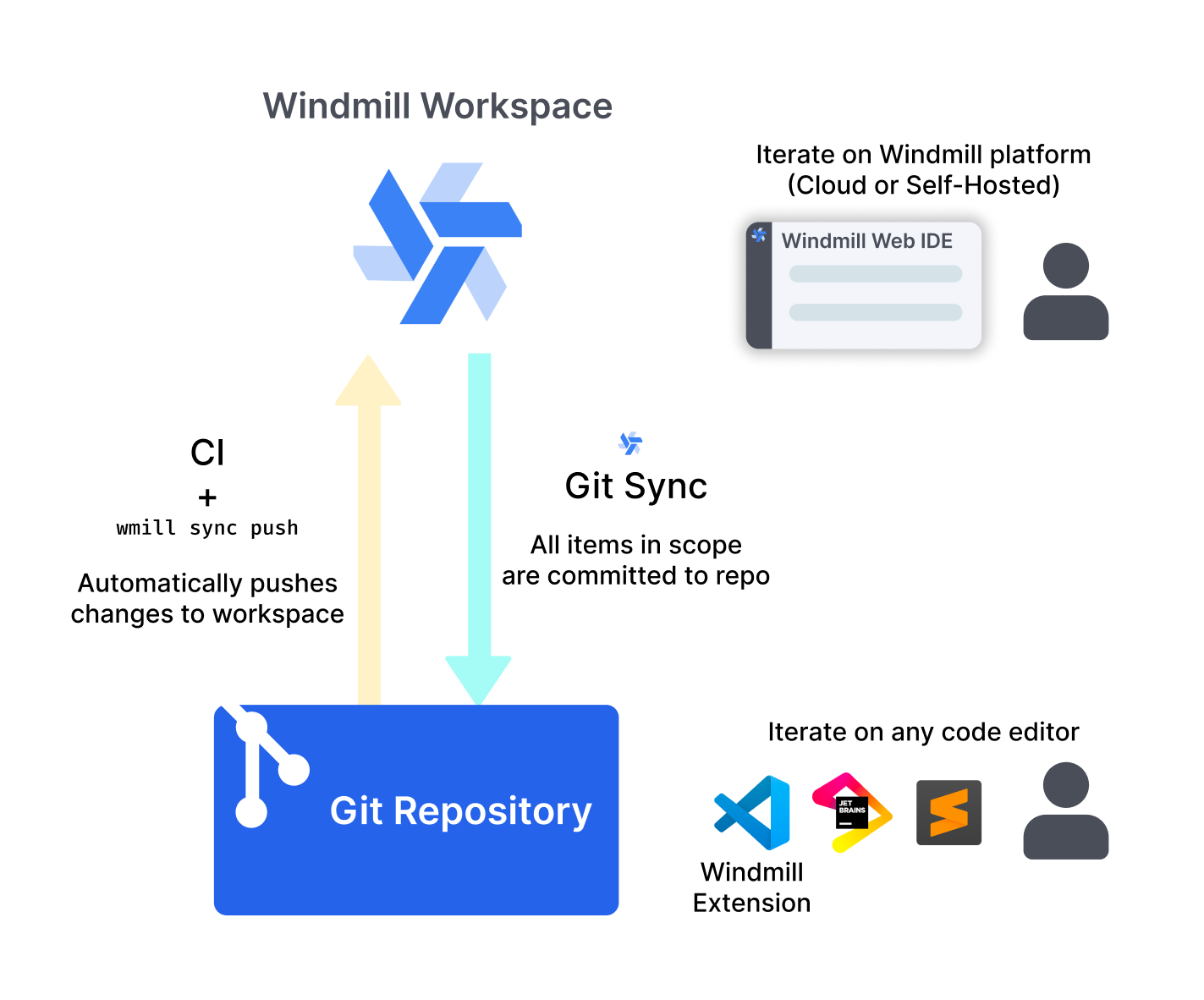
Setup - Git sync from Windmill
This video shows how to set up a Git repository for a workspace.
1. Initialize Git repository
First, create a Git repository to store your Windmill workspace:
Option A: Create empty repository (Recommended)
Create an empty Git repository on your Git provider (GitHub, GitLab, etc.) without any initial files. Windmill will populate it automatically in the next step.
Option B: Manual CLI setup
For more control, you can set up the repository manually using the Windmill CLI:
- Use Windmill CLI to pull the workspace locally:
wmill sync pull
Configure your wmill.yaml file with the desired filter settings before pushing to Git.
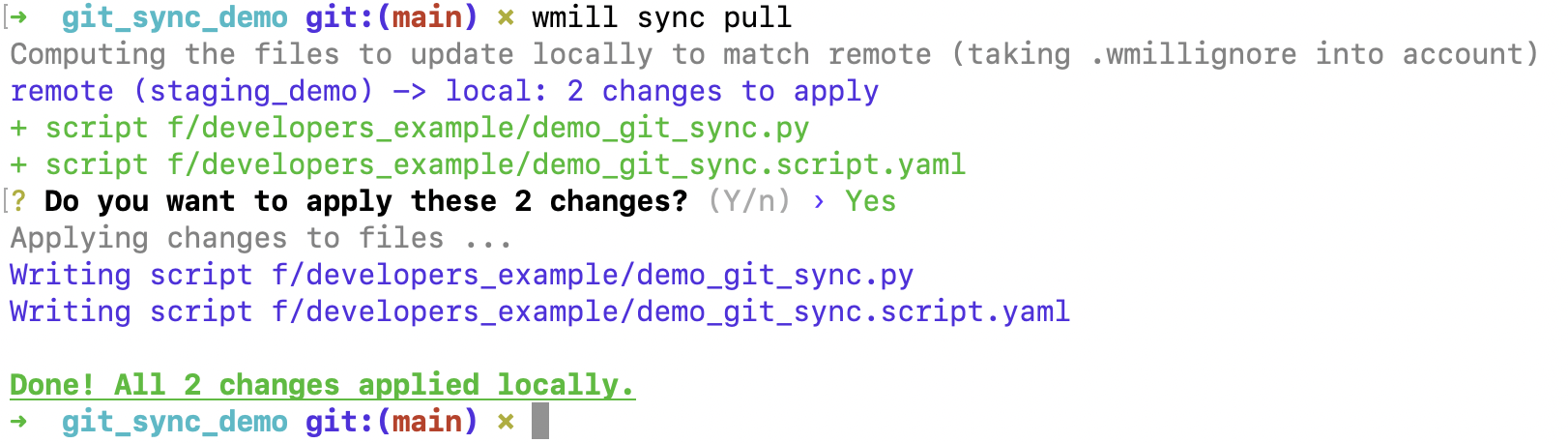
- Create a Git repository (in the example, on GitHub) and push the initial workspace content:
git init
git remote add origin https://github.com/username/reponame.git
git add .
git commit -m 'Initial commit'
git push -u origin main
You now have your Windmill workspace on a GitHub repository.
2. Setup in Windmill
- Go to workspace settings → Git Sync tab
- Click + Add connection
- Create or select a git_repository resource pointing to your Git repository. You have several authentication options:
- GitHub App: Use the GitHub App for simplified authentication and enhanced security. The button points to the Windmill-managed app, or to your instance's self-managed GitHub App when one is configured (for GitHub Enterprise Server, GitHub Enterprise Cloud or a custom app)
- GitLab: Hand a GitLab project access token to Windmill with the GitLab button in the resource form, and pick the project from the list (Enterprise only)
- Personal Access Token: Use a token with Read-and-write on "Contents". Your URL should be
https://[USERNAME]:[TOKEN]@github.com/[ORG|USER]/[REPO_NAME].git
- Complete the configuration of the connection and save
The GitHub App and the GitLab token are the two ways Windmill holds the repository's credential itself, which is what unlocks the managed features below: instant pull over a webhook, pull and merge requests opened on deploy, and diff previews on pull requests and merge requests. A token written into the URL is a plain git remote: it syncs on deploy and by polling, and nothing else.
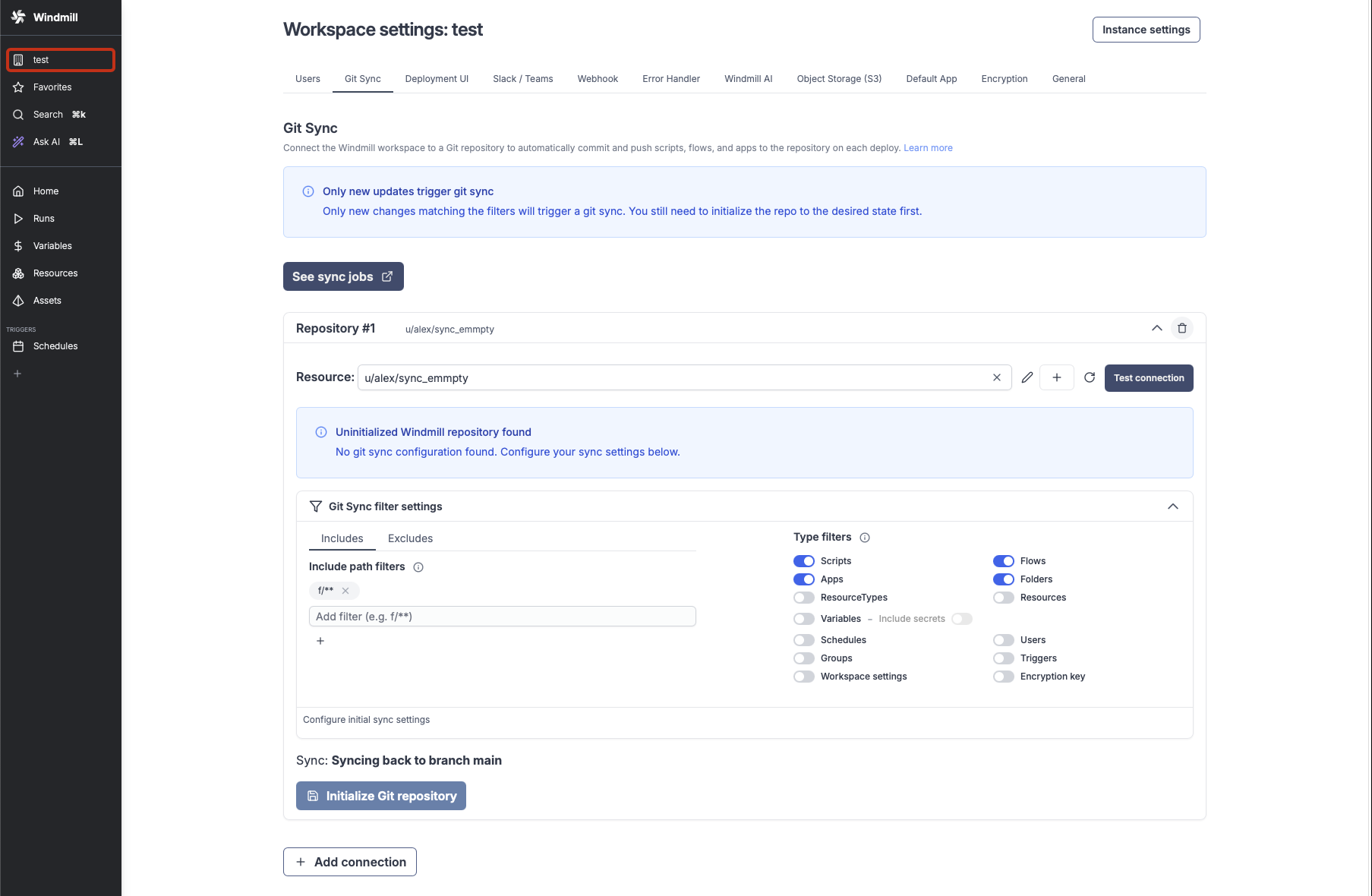
If you chose Option A (empty repository), use the "Initialize Git repository" operation to automatically:
- Create the
wmill.yamlconfiguration file with your filter settings - Push the entire workspace content to the Git repository
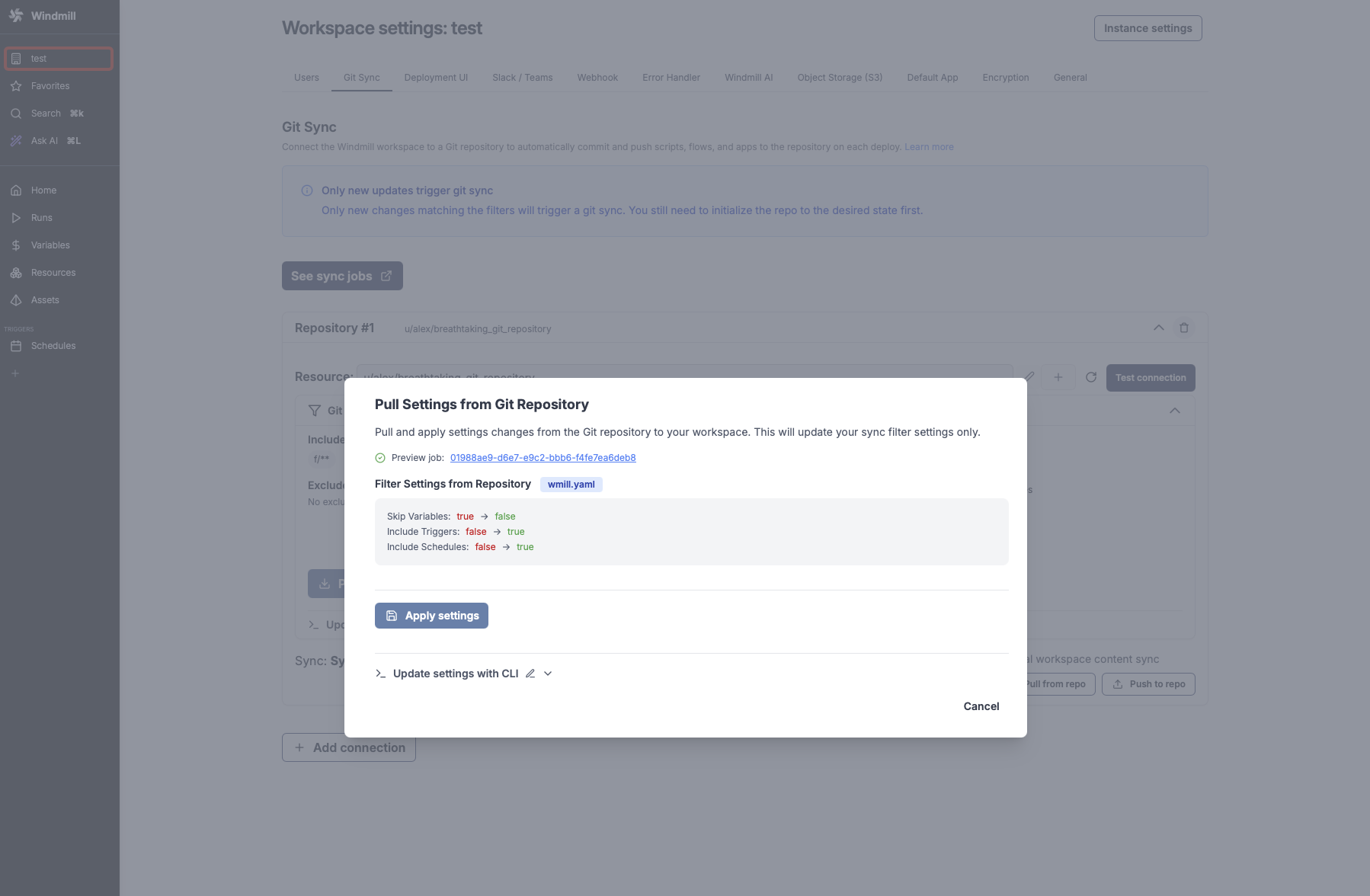
If the repository already contains a wmill.yaml file, the settings will be automatically imported and applied to your workspace configuration.
Configuration settings: Git sync filter settings are pulled from the wmill.yaml file in your repository. Once the connection is saved, you can update settings by changing wmill.yaml and pulling the settings via the corresponding button.
Signing commits with GPG
If your repo requires signed commits, you can set up GPG on your Windmill instance.
- Generate a GPG key pair:
gpg --full-generate-key
- Add the key to your GitHub account:
gpg --armor --export <key_id>
Go to your GitHub account settings => "SSH and GPG keys" and add the GPG public key.
- Add the private key to your Windmill instance:
gpg --armor --export-secret-keys <key_id>
In the Windmill workspace "Git Sync" settings, edit the "GPG key" field with the GPG private key. Use the email address associated with the key and set the passphrase if you added one.
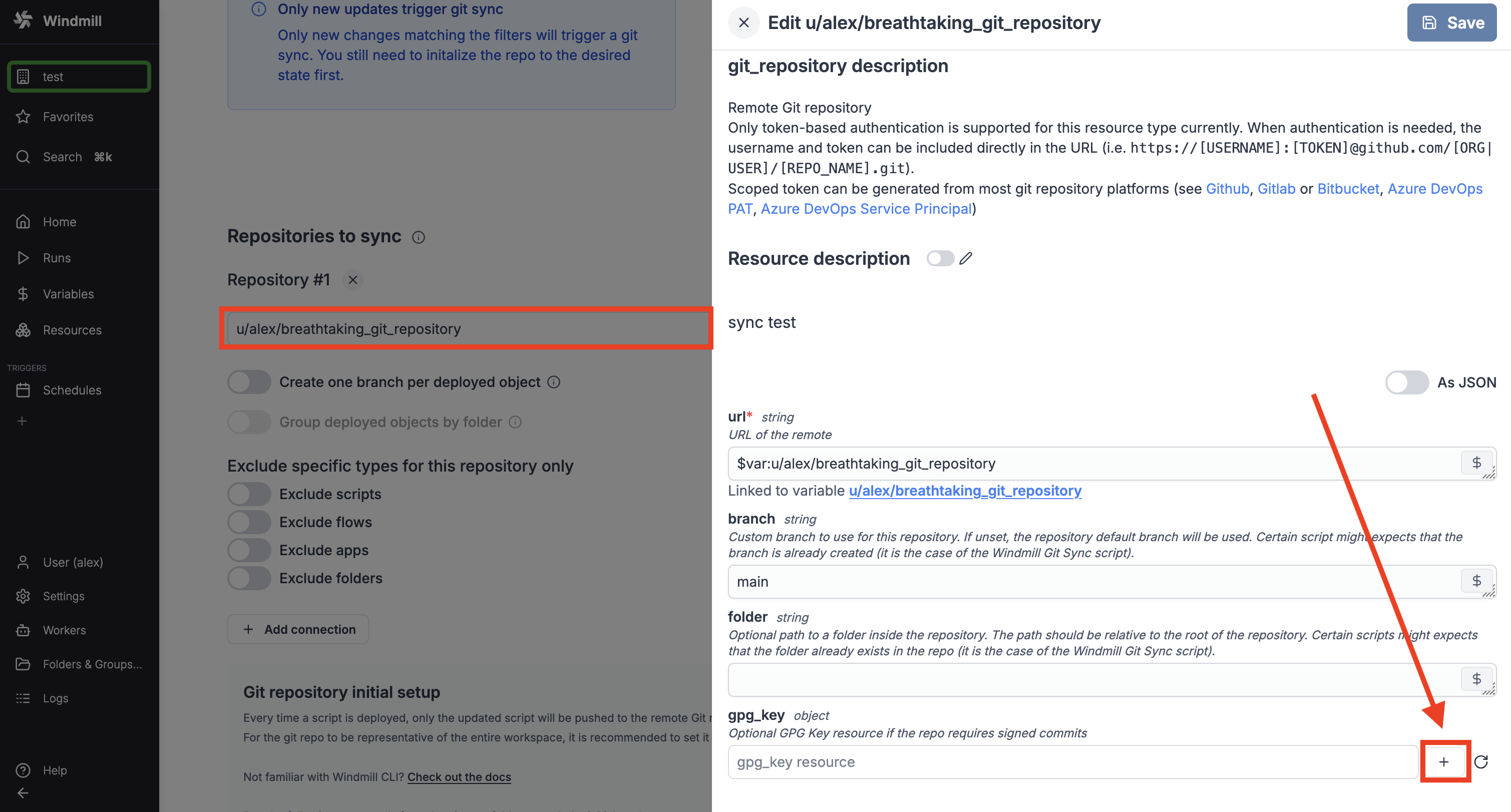
Make sure to double check that the email address associated with the key is the same as the one you use to commit to the repo. Furthermore, double check that the key id is the same as the one you see in the "GPG key" field on your GitHub account.
All commits will now be signed and committed as the user matching the email address associated with the key.
Azure DevOps with Service Principal setup
In Microsoft Entra ID, create an application and a secret (also known as Service Principal - an identity used by applications to access Azure resources).
Create an azure resource on your Windmill instance with the application's client_id, client_secret and tenant_id.
On Azure DevOps, add the application to the DevOps organization with the appropriate permissions.
In Git sync settings of your Windmill instance, define a new repository with URL:
https://AZURE_DEVOPS_TOKEN(<path_to_the_azure_resource>)@dev.azure.com/<organization>/<project>/_git/<repository>
Automatic sync from Git
Windmill can deploy new commits from the tracked branch directly into the workspace, without any GitHub Action or CI/CD pipeline. This feature is Enterprise Edition only.
The repository card in the Git sync settings is split into the two sync directions: "Push to Git on deploy (Windmill → Git)" and "Pull from Git (Git → Windmill)". To enable automatic sync from Git, turn on the "Automatically deploy changes from Git" toggle in the pull section of the repository.
How changes are detected depends on how the repository is connected:
- Repositories Windmill holds a credential for sync instantly via a webhook, with polling kept on as a safety net. That covers repositories connected through the GitHub App (managed or self-managed) and GitLab repositories whose project access token was handed to Windmill.
- Every other repository, including one whose token is written into its URL, is checked by polling only, about every minute. New sync connections default the toggle on only for repositories Windmill holds a credential for; polling is opt-in for the rest.
Once enabled, the repository card shows the current delivery mode and the last sync status (last synced commit, or the error if the last pull failed). Pull jobs also appear in the runs page under the "Sync" filter, like the deployment jobs of the push direction.
Webhooks
When automatic sync is enabled on a repository Windmill holds a credential for, Windmill registers a webhook on the repository. Pushes to the tracked branch are then delivered to your instance and deployed within seconds. Deliveries are verified against a secret Windmill sets on the hook, and disabling the toggle deletes the webhook.
On GitHub this requires the GitHub App installation to have the webhooks permission. If your organization has not approved it yet, Windmill falls back to polling (the card shows a "Falling back to polling" warning) and upgrades to webhook delivery automatically once the permission is granted. See GitHub App permissions for the full list of permissions and what each enables.
Self-managed GitHub Apps use the same per-repository webhook path: grant the same permissions on your app and Windmill registers the webhook against your GitHub host. Your Windmill base URL only needs to be reachable from that host, over a certificate it trusts, not from the public internet, so this also works on private networks. See network requirements for a self-managed app.
On GitLab, the webhook is a project hook, which the token needs the Maintainer role to create. A self-managed GitLab also refuses to create a hook pointing at a private address until an administrator allows it, see self-managed GitLab.
If your git host has to reach Windmill on a different url than your users' browsers do, set a webhook base url in instance settings.
If your instance is not reachable from the git host at all, webhook registration fails and the repository stays on polling. Nothing breaks; latency is the only difference.
Polling
Windmill periodically checks whether the tracked branch has new commits and deploys them when it does. Repositories without a webhook are checked about every minute; while a webhook is live, polling relaxes to about every 10 minutes and only acts as a safety net for missed deliveries.
Loop prevention
Commits made by Windmill itself are prefixed with [WM] and are skipped by the automatic sync, so a deploy that commits to the repository does not trigger a pull of its own commit.
If you previously configured a GitHub Action that pushes changes to Windmill on merge, remove it (or keep automatic sync disabled): running both makes them fight over deploys.
Automatic fork sync
When "Automatically deploy changes from Git" is enabled, the "Automatically sync forks with git branches" toggle (on by default) extends automatic sync to workspace forks: when a fork's wm-fork/** branch changes in the repository (for example after merging the tracked branch into it), Windmill deploys those commits into the matching fork workspace. This replaces the push-on-merge-to-forks GitHub Action.
It is configured once on the parent workspace's repository and applies to every fork of that workspace, current and future, with zero fork-side setup. Fork workspaces cannot configure automatic sync themselves: their repository card shows a read-only line indicating that sync is managed in the parent workspace, along with the fork's branch name and last pull status.
Pull requests and checks
For repositories Windmill holds a credential for, through the GitHub App or a GitLab project access token, Windmill can also open pull requests itself and report on your pull requests, replacing the gh pr create GitHub Actions. Both run from the deploy job itself (outbound calls to the git host), so they work even when your instance is not reachable from it.
On GitLab the toggles below open merge requests, and the preview is a merge request note rather than a check, with no commit-level check either.
In-app pull request creation
Two per-repository toggles control pull request creation:
- "Open a pull request for each deploy branch", on Git Promotion repositories: after a deploy pushes its
wm_deploy/**branch, Windmill opens (or reopens) a pull request to the target branch. Defaults on for newly configured promotion repositories whose credential Windmill holds. - "Open a pull request when an item is deployed in a fork", on the parent workspace's sync repository: after an item deployed in a workspace fork is pushed to the fork's
wm-fork/**branch, Windmill opens a pull request to the tracked branch of the shared repository. Opt-in, Enterprise Edition only.
If a pull request already exists for the branch, Windmill reuses it, so the documented open-pr-on-commit / open-pr-on-fork-commit GitHub Actions can stay installed if you want custom titles or CI, without duplicate pull requests. If a pull request could not be opened (for example because the GitHub App installation has not approved the pull requests permission yet, or a GitLab token's role is too low), the error is surfaced on the repository card.
For repositories whose credential Windmill does not hold, these toggles are not available; use the GitHub Actions or GitLab CI workflows instead.
Pull request diff checks
With automatic sync enabled on an app-backed GitHub repository, a pull request targeting the tracked branch gets a "Windmill diff" check run on its head commit: Windmill dry-runs the pull on the result of merging the pull request into the tracked branch, and reports what merging would deploy to the workspace (in sync, N changes, or the failure). Windmill also maintains a single managed comment on the pull request with the workspace, sync status, commit and a collapsible change list, updated in place on each new push to the pull request.
Merge request diff previews
On GitLab the preview is the same dry-run pull, reported in a merge request note that Windmill updates in place on each push, so a merge request carries one Windmill comment however many times it is pushed to. The note is advisory: unlike a GitHub check, it cannot block a merge or change what your own pipeline reports.
CI tests check
With automatic sync enabled on an app-backed GitHub repository, a pull request targeting the tracked branch also gets a "Windmill CI tests" check run on its head commit, reporting the CI test scripts of the workspace its branch syncs to. Mark it as a required status check on the tracked branch to block merging until the tests pass, with no GitHub Action to maintain.
The check applies to pull requests whose head branch is the branch of a workspace fork (wm-fork/**) or of a dev workspace.
Once that workspace reflects the pull request head, Windmill runs every CI test it declares, as the user who created the fork or dev workspace, and fails the check as soon as one of them fails.
A workspace declaring no test passes with a "No CI tests" conclusion, and a check still running 30 minutes after it opened fails.
Each push to the pull request opens a new check on the new head and runs the whole suite again.
Pull requests from any other branch, such as a plain feature branch or a contributor's fork of the repository, get the check posted as skipped, which GitHub counts as passing for a required check. Merge queues are not supported: a merge group commit exists in no workspace, so require the check on the pull request itself.
Deploy status check
When a commit on the tracked branch is deployed by automatic sync, Windmill posts a "Windmill" check run on that commit that flips from "Deploying…" to "Deployed N changes", with a link back to the Windmill run. When several workspaces sync the same repository, each check is titled with its target workspace. Windmill posts no deploy status on GitLab.
Setup - CI/CD from git repository
As an alternative to automatic sync from Git, CI/CD can be configured to sync back changes to Windmill anytime a commit is made. This is the way to go for git hosting platforms other than GitHub and GitLab, for repositories whose credential Windmill does not hold, or when you prefer running the sync from your own CI. Keep either the CI/CD action or automatic sync enabled, not both, so they don't fight over deploys.
Github Actions
- Add GitHub Actions to your repository. You will find the necessary actions in the windmill-sync-example repository.
- Create a
.github/workflowsdirectory in your repository and add the following files:open-pr-on-fork-commit.yaml: This action automatically creates a PR when Windmill commits a change to a workspace fork. Workspace forks are explained in a section below.push-on-merge.yaml: This action automatically pushes the content of the repo to the Windmill prod workspace when a PR is merged. Update theWMILL_WORKSPACEvariable to the name of your prod workspace.- Optionally, if you want to add a staging workspace, copy the previous GitHub action/workflow file but now set the
WMILL_WORKSPACEvariable to the id of the staging workspace and theWMILL_URLvariable to the base URL of the Windmill instance if different than the one for prod. Also changes the trigger to listen to the branches: 'staging'. push-on-merge-to-forks.yaml: This does the same aspush-on-merge.yamlbut for all Workspace Forks, enabling the full power of the feature.
- In GitHub, allow actions to create and approve pull requests.
- Create a user token in Windmill and save it as a secret named
WMILL_TOKENin your GitHub repository Settings > "Secret and Variable" > "Actions". An unscoped token is the simplest choice; if you need a scoped one, see CLI and git sync for the required scopes.
On top of WMILL_TOKEN, 2 other variables need to be set in the GitHub action workflow file:
WMILL_WORKSPACE: the name of the workspaceWMILL_URL: the base URL of the Windmill instance (e.g. https://app.windmill.dev/)
- open-pr-on-commit.yaml
- push-on-merge.yaml
- push-on-merge-to-forks.yaml
name: "Open pull request for workspace forks"
on:
  push:
    branches:
      - wm-fork/**

env:
  TARGET_BRANCH: main

jobs:
  submit_pull_requests:
    runs-on: ubuntu-latest
    permissions:
      contents: read
      pull-requests: write

    steps:
      - uses: actions/checkout@v4
      - name: Create pull request
        run: |
          gh pr view ${{ github.ref_name }} \
          && gh pr reopen ${{ github.ref_name }} \
          || gh pr create -B ${{ env.TARGET_BRANCH }} -H ${{ github.ref_name }} \
          --title "${{ github.event.head_commit.message }}" \
          --body "PR created by Github action '${{ github.workflow }}'"
        env:
          GITHUB_TOKEN: ${{ secrets.GITHUB_TOKEN }}
name: "Push main to Windmill workspace"
on:
  workflow_dispatch:
  push:
    branches:
      - "main"
    # if the windmill workspace is persisted in a subfolder of this repos, you can add the following to avoid pushing to windmill when there's no change
    # paths:
    #   - wm/**

env:
  WMILL_URL: https://app.windmill.dev/
  WMILL_WORKSPACE: github-sync-example-prod

jobs:
  sync:
    environment: windmill
    runs-on: "ubuntu-latest"
    steps:
      - name: Checkout
        uses: actions/checkout@v3

      - uses: actions/setup-node@v4
        with:
          node-version: 20

      # We check the commit to make sure it doesn't start with [WM] which commits coming from Windmill Git Sync do.\
      # If that's the case, then we stop the workflow as we want to avoid overwriting changes that are out-of-sync
      # (for instance if one were to deploy in quick succession)
      - name: Check commit message
        id: check_message
        run: |
          COMMIT_MESSAGE="${{ github.event.head_commit.message }}"
          if [[ "$COMMIT_MESSAGE" =~ ^\[WM\] ]]; then
            echo "Commit message starts with '[WM]', skipping push to Windmill to avoid overwriting deploy that immediately follows it"
            echo "skip=skip" >> $GITHUB_OUTPUT
          fi

      # (push will pull first to detect conflicts and only push actual changes)
      - name: Push changes
        if: steps.check_message.outputs.skip != 'skip'
        run: |
          npm install -g windmill-cli@1.682.0
          wmill sync push --yes --skip-variables --skip-secrets --skip-resources --workspace ${{ env.WMILL_WORKSPACE }} --token ${{ secrets.WMILL_TOKEN }} --base-url ${{ env.WMILL_URL }}
name: "Push forks to Windmill workspace forks"
on:
  workflow_dispatch:
  push:
    branches:
      - wm-fork/**

env:
  WMILL_URL: https://app.windmill.dev/

jobs:
  sync:
    environment: windmill
    runs-on: "ubuntu-latest"
    steps:
      - name: Checkout
        uses: actions/checkout@v3

      - uses: actions/setup-node@v4
        with:
          node-version: 20

      - name: Extract workspace from branch name
        id: workspace
        run: |
          BRANCH_NAME=${GITHUB_REF#refs/heads/}
          WORKSPACE=$(echo "$BRANCH_NAME" | sed 's|wm-fork/.*/|wm-fork-|')
          echo "workspace=$WORKSPACE" >> $GITHUB_OUTPUT

      # We check the commit to make sure it doesn't start with [WM] which commits coming from Windmill Git Sync do.\
      # If that's the case, then we stop the workflow as we want to avoid overwriting changes that are out-of-sync
      # (for instance if one were to deploy in quick succession)
      - name: Check commit message
        id: check_message
        run: |
          COMMIT_MESSAGE="${{ github.event.head_commit.message }}"
          if [[ "$COMMIT_MESSAGE" =~ ^\[WM\] ]]; then
            echo "Commit message starts with '[WM]', skipping push to Windmill to avoid overwriting deploy that immediately follows it"
            echo "skip=skip" >> $GITHUB_OUTPUT
          fi

      # (push will pull first to detect conflicts and only push actual changes)
      - name: Push changes
        if: steps.check_message.outputs.skip != 'skip'
        run: |
          npm install -g windmill-cli@1.682.0
          wmill sync push --yes --skip-variables --skip-secrets --skip-resources --workspace ${{ steps.workspace.outputs.workspace }} --token ${{ secrets.WMILL_TOKEN }} --base-url ${{ env.WMILL_URL }}
GitLab CI
The sync-back mechanism is git-provider-agnostic: it is just wmill sync push run from CI. The following .gitlab-ci.yml mirrors the push-on-merge and push-on-merge-to-forks GitHub Actions above.
Set WMILL_TOKEN and WMILL_URL as masked CI/CD variables under Settings > CI/CD > Variables (create the token as a user token in Windmill). Set WMILL_WORKSPACE to your prod workspace name.
# .gitlab-ci.yml
stages:
  - sync

variables:
  WMILL_CLI_VERSION: "1.682.0"
  # WMILL_URL and WMILL_TOKEN are set as masked CI/CD variables in
  # Settings > CI/CD > Variables. WMILL_WORKSPACE (prod) can live there too.

.sync_base:
  stage: sync
  image: node:20
  before_script:
    - npm install -g windmill-cli@${WMILL_CLI_VERSION}

# main -> prod workspace
push-on-merge:
  extends: .sync_base
  variables:
    WMILL_WORKSPACE: "gitlab-sync-example-prod"
  rules:
    # Skip commits Windmill itself pushed (prefixed with [WM]) to avoid
    # overwriting a deploy that immediately follows.
    - if: '$CI_COMMIT_MESSAGE =~ /^\[WM\]/'
      when: never
    - if: '$CI_COMMIT_BRANCH == "main"'
  script:
    # push pulls first to detect conflicts and only pushes actual changes
    - >
      wmill sync push --yes --skip-variables --skip-secrets --skip-resources
      --workspace "$WMILL_WORKSPACE" --token "$WMILL_TOKEN" --base-url "$WMILL_URL"

# wm-fork/** -> matching fork workspace (wm-fork-<name>)
push-on-merge-to-forks:
  extends: .sync_base
  rules:
    - if: '$CI_COMMIT_MESSAGE =~ /^\[WM\]/'
      when: never
    - if: '$CI_COMMIT_BRANCH =~ /^wm-fork\//'
  script:
    # wm-fork/<originalBranch>/<name> -> wm-fork-<name>
    - WMILL_WORKSPACE=$(echo "$CI_COMMIT_BRANCH" | sed 's|wm-fork/.*/|wm-fork-|')
    - >
      wmill sync push --yes --skip-variables --skip-secrets --skip-resources
      --workspace "$WMILL_WORKSPACE" --token "$WMILL_TOKEN" --base-url "$WMILL_URL"
The push-on-merge-to-forks job powers workspace forks: pushes to wm-fork/** branches are deployed into the matching fork workspace. Fork workspace IDs and branch names follow the wm-fork-<name> / wm-fork/<originalBranch>/<name> convention.
To open a merge request when Windmill commits a fork branch (the equivalent of open-pr-on-fork-commit), either enable in-app pull request creation on the parent workspace's repository, which works once the repository's project access token has been handed to Windmill, or add a job that calls the GitLab merge requests API (or glab mr create) on wm-fork/** branch pushes.
Other Git hosting platforms
If you are using another git hosting platform, such as Codeberg, you just need to set up similar actions in your CI/CD. There are currently no detailed instructions for other platforms so you will need to adapt the GitHub or GitLab examples above to your needs.
Filters
Path filters
Only scripts, flows and apps with their path matching one of the set filters will be synced to the Git repositories below. The filters allow * and ** characters, with * matching any character allowed in paths until the next slash (/) and ** matching anything including slashes.
By default everything in folders (with rule f/**) will be synced.
You can configure:
- Include paths: Primary patterns for what to sync (e.g.,
f/**) - Exclude paths: Patterns to exclude after include checks
Type filters
On top of the filter path above, you can include only certain type of object to be synced with the Git repository. By default everything is synced.
You can filter on:
- Scripts - Individual scripts
- Flows - Workflow definitions
- Apps - Application definitions
- Folders - Folder structure
- Resources - Resource instances
- Variables - Workspace variables
- Include secrets - Option to include secret variables
- Schedules - Scheduled job definitions
- Resource types
- Users - User definitions
- Groups - Group definitions
- Triggers - Event triggers (HTTP routes, WebSocket, Postgres, Kafka, NATS, SQS, GCP Pub/Sub, MQTT)
- Workspace settings - Global workspace configuration
- Encryption key - Workspace encryption key
- Workspace dependencies - Shared dependency files. Creating, archiving, or deleting workspace dependencies triggers deployment callbacks for git sync.
- Data table migrations - SQL migrations of data tables, stored under
migrations/datatable/. On by default, including on git sync configurations predating the type. Like workspace dependencies, users and workspace settings, they sit outside thef/andu/namespaces, so the path filters do not apply to them and this toggle (orskipDatatableMigrationsinwmill.yaml) is the only way to opt out.
Granular permissions
Granular permissions set on a script, flow, app or variable are committed as an extra_perms map in the item's file, and changing them from the Share menu triggers a commit of its own.
Deploying such a commit back applies the map through the same grant and revoke operations the Share menu uses, so it does not create a new version of the item.
See granular permissions for the file format.
Workspace forks integration
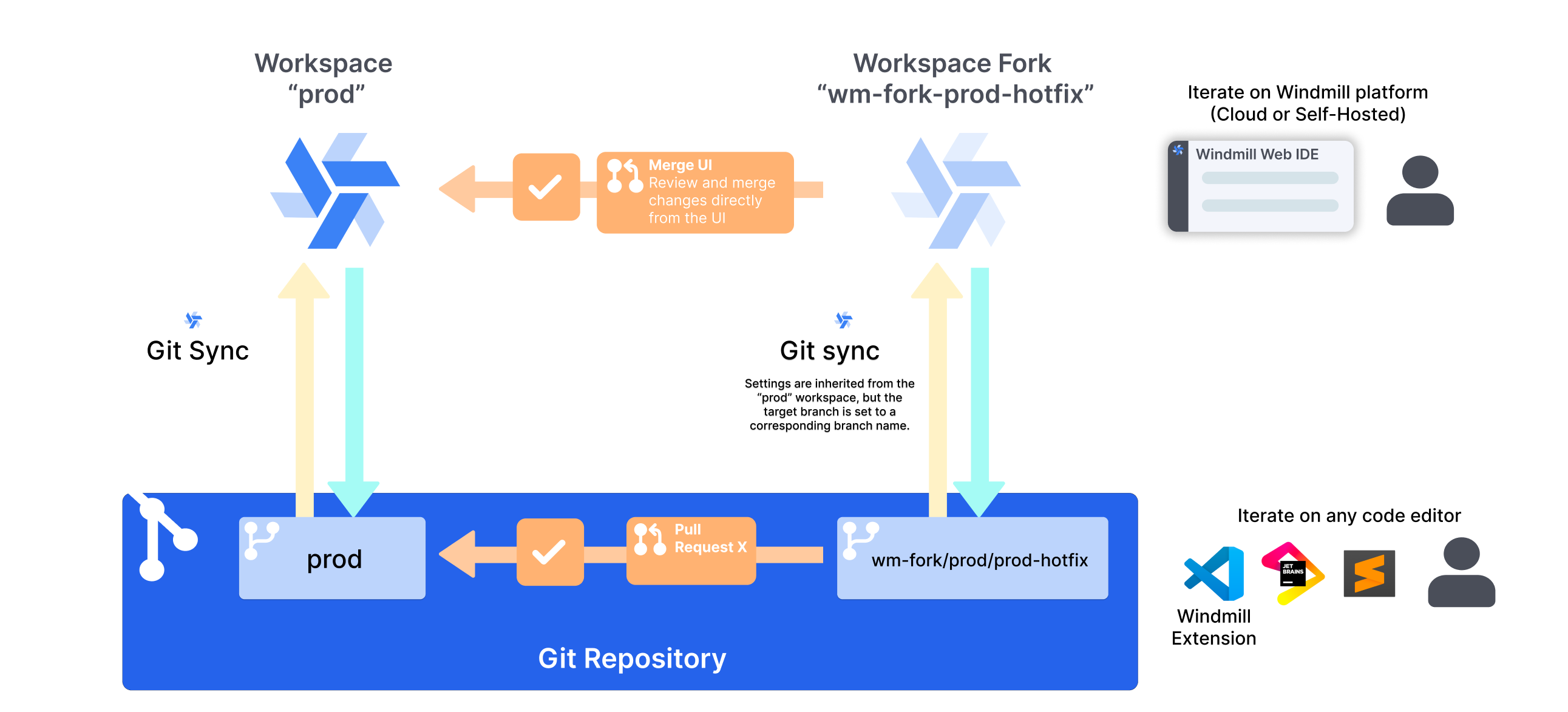
Git sync automatically creates corresponding git branches for workspace forks. When you fork a workspace with git sync enabled, Windmill creates a branch with the naming pattern wm-fork/<parent-branch>/<fork-name> and keeps it synchronized with the forked workspace.
This enables parallel development workflows where multiple developers can work on separate workspace forks, each with its own git branch, and merge changes back to the parent workspace either through the UI or via pull requests.
A dev workspace is the exception: it deploys to a top-level branch named after its environment label (dev, qa, test, uat, staging, demo, sandbox or preprod) rather than to a wm-fork/** branch, which is why a label cannot be a branch this repository already tracks.
With Promote to prod via Git enabled on the repository it inherited from prod, deploys instead create per-item wm_deploy/** branches off the prod workspace's tracked branch, the same Git Promotion scheme a root workspace uses.
For repositories Windmill holds a credential for (GitHub App or GitLab project access token), both fork directions can be fully managed by Windmill: automatic fork sync deploys external changes on a fork's branch into the fork workspace, and the "Open a pull request when an item is deployed in a fork" toggle opens the pull or merge request back to the tracked branch.
Adding secondary sync repositories
You can add secondary sync repositories if you need to. Just go to Git sync settings, press + Add secondary sync repo and follow the same instructions as for the first one.
Windmill pushes workspace changes to secondary repositories the same way it does to the primary one, each with their own path and type filters. The difference is the direction of sync: only the primary repository supports pulling changes from git back into the workspace (true bidirectional sync). Secondary repositories receive pushes from Windmill but are never read back into the workspace, so their git copy stays in sync with the workspace but cannot be used to modify it.
The two main use cases for secondary repositories are:
- Read-only backup storage: keep an additional copy of the workspace in another repository for backup or mirroring.
- Partitioning the workspace: use per-repository include/exclude path filters to sync different folders to different repositories. For example, configure one secondary repository per team, each filtered to that team's folders, so every team gets an isolated repository with its own CI/CD pipelines.
Repository operations
Each configured repository supports several operations:
- Test connection: Verify repository access and credentials
- Preview changes: Perform a dry-run to see what would be synced
- Push to repository: Send workspace content to git repository
- Pull from repository: Get changes from git repository to workspace
- Pull settings: Get only wmill.yaml configuration changes
- Initialize repository: Set up new git repository with Windmill structure
wmill.yaml integration
Git sync settings can be controlled via the wmill.yaml file in your repository root. This enables:
- CLI compatibility: Settings configured in the UI are compatible with Windmill CLI
- Version-controlled configuration: Your sync settings are stored in git alongside your code
- Workspace-specific overrides: Different sync behavior per workspace (resolved from the current git branch or
--workspace) - Git promotion-specific settings: Special configuration for deployment workflows
- Workspace-specific items: Different versions of resources and variables per workspace
The frontend will detect existing wmill.yaml files and merge settings appropriately.
Exclude specific types for this repository only
You can exclude specific types per repository, overriding the global workspace filters.
Local development
Once git sync is set up, the git repository becomes the entry point for local development. You can edit scripts, flows, and apps in any environment that works against the repository:
- Your IDE of choice, with the Windmill CLI (
wmill sync pull/wmill sync push) or the VS Code extension. - Agentic coding tools such as Claude Code, Cursor, or any MCP-compatible client.
wmill initgenerates anAGENTS.mdand skill files that give these agents the context they need to write Windmill-native scripts and flows.
Changes committed and pushed to git are replayed back into the workspace to close the loop. There are two ways this deploy happens, and which one applies determines the command you run:
git push- when the workspace deploys new commits itself (automatic sync from Git), or when a CI/CD workflow runswmill sync pushon push. In both cases pushing the tracked branch is enough.wmill sync push- when there is no deploy-on-push path, deploy your local changes directly with the CLI.
Run wmill gitsync-settings status to find out which path applies to your workspace and current branch.
Git Promotion workflow: Cross-instance deployment using a git workflow
One option you will see in the Git Sync settings tab, is to add a Git Promotion target. This is an advanced setup that leverages the feature to create deployements from one workspace to another.
Learn how to setup Git Promotion: